
Teams and roles
Sign in, find your team or create another, invite people, and what owners, admins and members can do.
Sign in
Arkor accounts are GitHub accounts: sign in with Continue with GitHub on the sign-in page. No other sign-in is offered.
The first time you sign in, a personal team is created for you. Its address in the dashboard is
your GitHub login in lowercase, such as /hina-nakahira; when that address is reserved or already
taken, your GitHub account ID is added to it. Projects, the plan, API tokens and usage belong to
the team. A personal team is on the free plan, so you can deploy
from it right away.
A personal team cannot be deleted, and its owner cannot be removed.
Create a team
Besides your personal team, you can create teams of your own, for a company or a project.
- At the top of the sidebar, choose your team's name, and choose Create team.
- Enter a Team name.
- Check the Address: the team's address in the dashboard, such as
/acme. It is filled in from the name as you type it, and you can change it. Use 2 to 64 lowercase letters, numbers and hyphens; an address that is reserved or already taken cannot be used. - Choose Create team.
You become the team's owner, and the dashboard opens it. The same menu at the top of the sidebar switches between your teams.
A new team starts with no plan, whatever plan your other teams are on: the free plan is for your personal team alone. To create projects in it, subscribe it to Pro under Usage & billing; see Plans and billing. A team cannot be deleted, and you stay its owner: nobody can remove you, and you cannot leave it.
Change the team's name or address
Open Team settings › General, edit Team name or Address, and choose Save. Owners and admins can change a team; only the owner can change a personal team's name or address. Changing the name does not fill in a new address.
Changing the address moves the dashboard to its new URL. The previous address is released for another team to use, and old links are not forwarded. Projects, members, the plan and API tokens continue to belong to the same team.
Invite people
Owners and admins invite people into a team, a personal team included, by their GitHub username.
- Open Team settings › Members, and choose Invite.
- Enter the person's GitHub username, and choose a Role: Member or Admin.
- Choose Invite, then Copy, and send them the link. Arkor sends no email.
The invitation is for that GitHub account, even if it is renamed later. The person joins by signing in with it, whether or not they have used Arkor before, and choosing Join the team; the invitation also waits for them under Invitations at the top of the sidebar. Anyone else who opens the link is told only which account it is for.
An invitation is good for seven days. Inviting the same person again renews it, and the link already sent keeps working. Team settings › Members lists the invitations still out: copy a link again, or choose Take back… to cancel one. A team holds 100 members and open invitations in all.
Change roles, remove and leave
In Team settings › Members, owners and admins make a member an admin or an admin a member, and choose Remove… to take someone out of the team; an owner's role cannot be changed there. Anyone but the team's owner can choose Leave… to leave it.
When someone is removed, leaves, or is made a member, the API tokens they created for the team are revoked, and the invitations they sent are taken back. So are the share links and codes they issued for the team's protected sites, and a personal GitHub account of theirs they connected is disconnected from the team. The team's projects stay with the team.
What the team's own tools use stays: a project's automation key and password, drain signing secrets, sending keys, and an organization's GitHub account. Where one of these was issued to, set by or connected by someone who no longer manages the team, its settings page says so beside the button that replaces or removes it, until someone else does. Links, keys and connections from before Arkor recorded who made them are neither taken back nor flagged.
Roles
| Role | Can |
|---|---|
| Owner, Admin | Everything: add and delete projects, change settings, domains and environment variables, deploy, manage GitHub accounts, API tokens, members and the plan, and see costs. |
| Member | Read: projects, deployments, build and runtime logs, Web Analytics, Speed Insights and usage without costs. In the Cache Inspector, entries and history, but not stored pages. |
Everyone in a team sees who else is in it: their name, GitHub username and picture.
Account settings, language, theme and signing out
The … menu next to your name, at the bottom of the sidebar, has Account settings, switches the dashboard between English and 日本語, and has Sign out. Your time zone and your cookie choice are in Account settings.
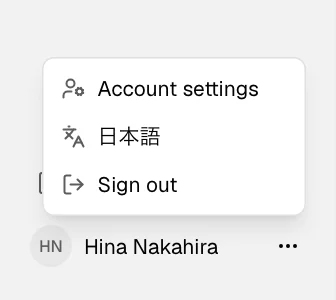
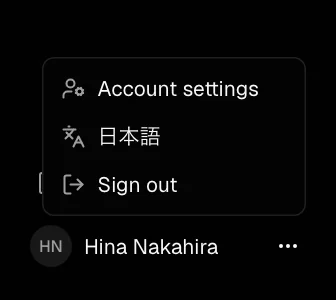
The dashboard follows your system's light or dark setting. To choose one yourself, use the theme button in the site's header.