
Builds and deployments
Follow a build, read its log, redeploy an earlier commit and fix a failed build.
Every build of a project is a deployment. Once it has built and passed the checks before it is served, it is published: the project's addresses serve it from then on, until the next one is published. When the project's preview policy selects another branch, its push creates a preview deployment instead, served at addresses of its own.
The Deployments page
Open a project and choose Deployments in the sidebar. It lists every deployment, newest first, with its result, the commit it built, when it started and how long it took. Published marks the one being served.
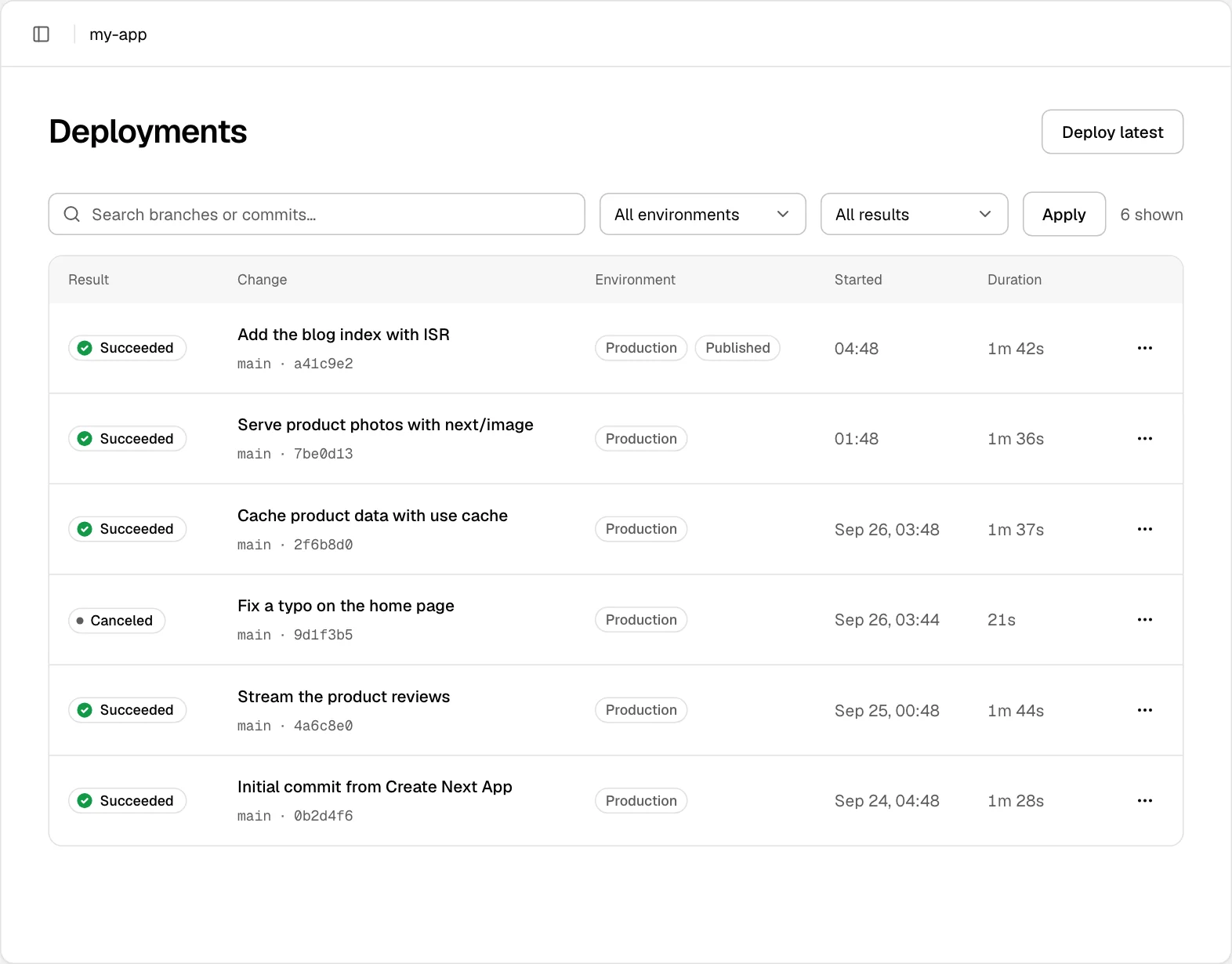
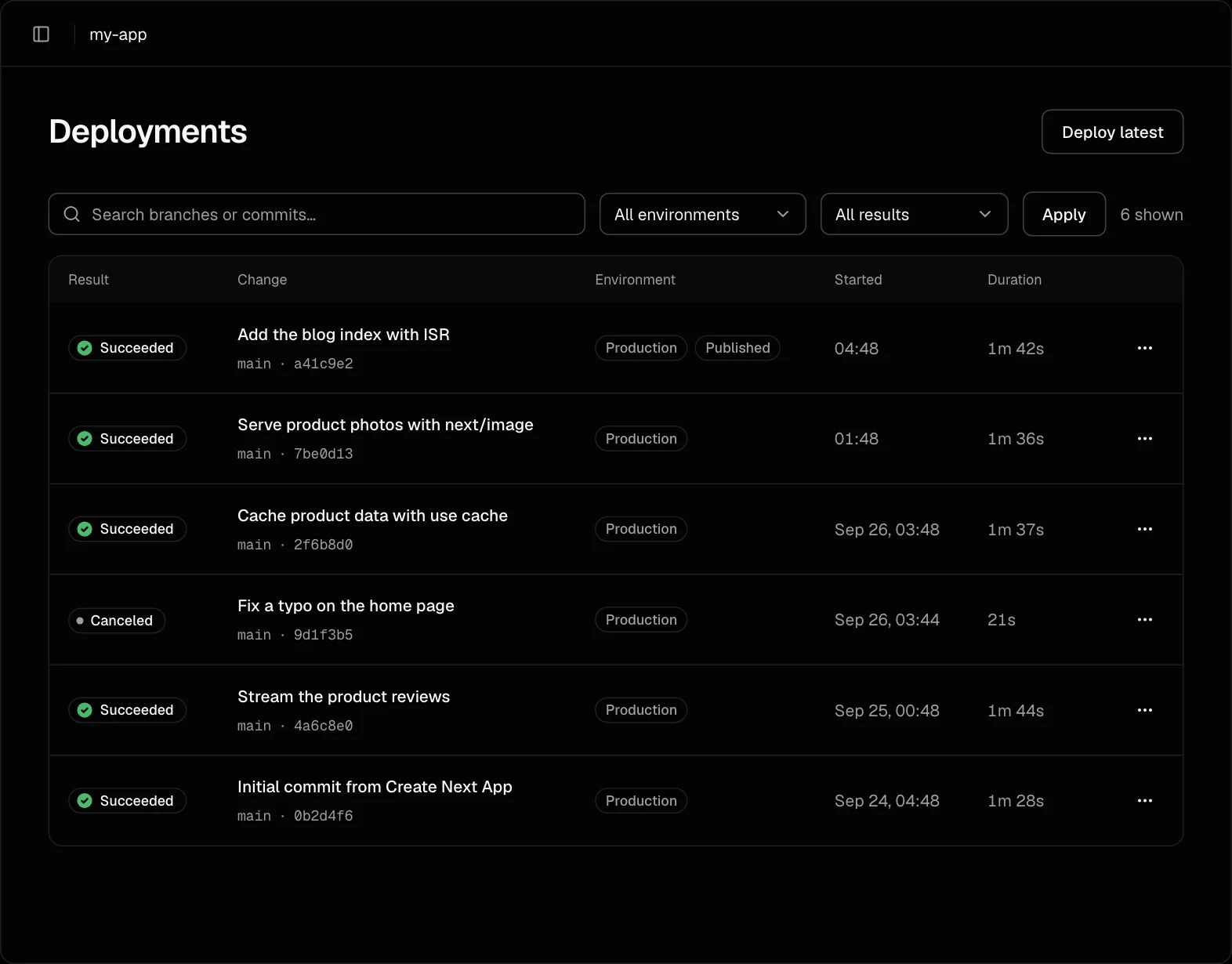
A deployment's result is one of:
| Result | Meaning |
|---|---|
| Queued | Waiting for a build machine, or for the build before it to finish. |
| Building | Fetching the source, installing dependencies or running next build. |
| Publishing | Built, and being checked before it is served. |
| Succeeded | Built and published. It is served until a newer deployment is published. |
| Failed | The build or its publication failed. The published deployment is unaffected. |
| Canceled | A newer deployment took its place before this one finished. |
Search by branch or commit, or filter by result, and choose Apply. The search covers the deployments listed; choose Load older to look further back.
Choose a deployment to open its page. The menu at the end of each row has View build log; Inspect build output, once the build has produced output (see Inspecting a build); Open this build, while the deployment has an address of its own; and, for owners and admins, Redeploy this commit.
A deployment's own address
Every published deployment also has an address of its own, https://<project>-dpl-<id>.arkor.app,
which serves that build and nothing else. Use it to open exactly the version a deployment built,
or to compare it with the one before.
| Deployment | Served at its own address |
|---|---|
| A production deployment | While it is published, and after the next one is published, until the one after that is: Arkor keeps the one before ready to serve |
| A preview deployment | As long as the preview is kept |
After that the address no longer answers, so link to your project's address or your own domain
for anything that has to last. The address follows the project's settings:
access protection guards it as it guards the project's own
address, and it stops serving when the project does. A production build's ARKOR_URL is still the
project's own address, not this one.
The address is not kept out of search results for you. If your pages can be found from outside,
give them a canonical URL — in Next.js, alternates.canonical in the
metadata — so a
search engine that reaches a deployment's address indexes your own instead.
Follow a build
A deployment's page shows the build as it runs: the stages (Fetch source, Build, Publish) and the end of the log, refreshed every few seconds. Pause holds the view while you read; Jump to latest catches up.
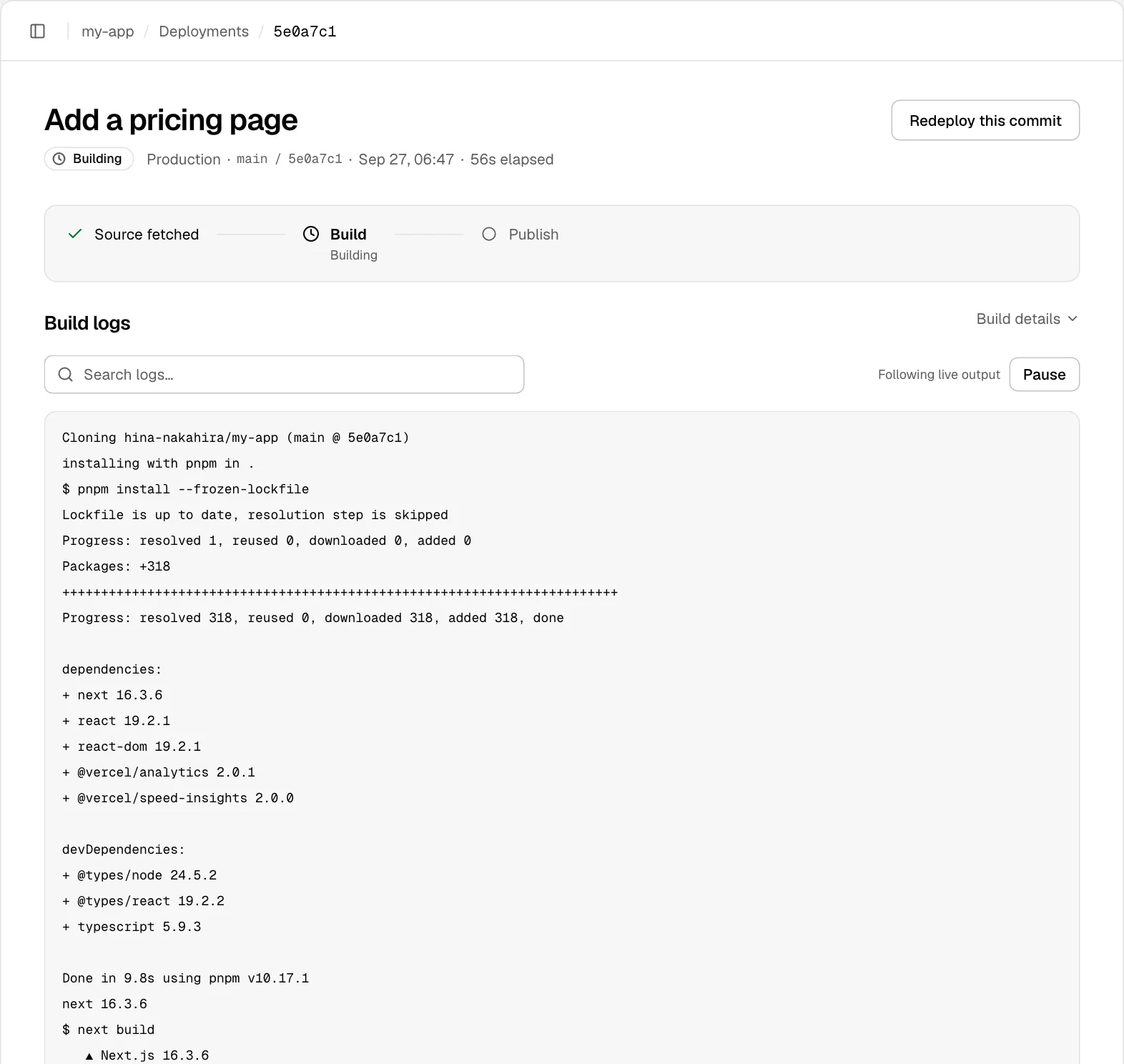
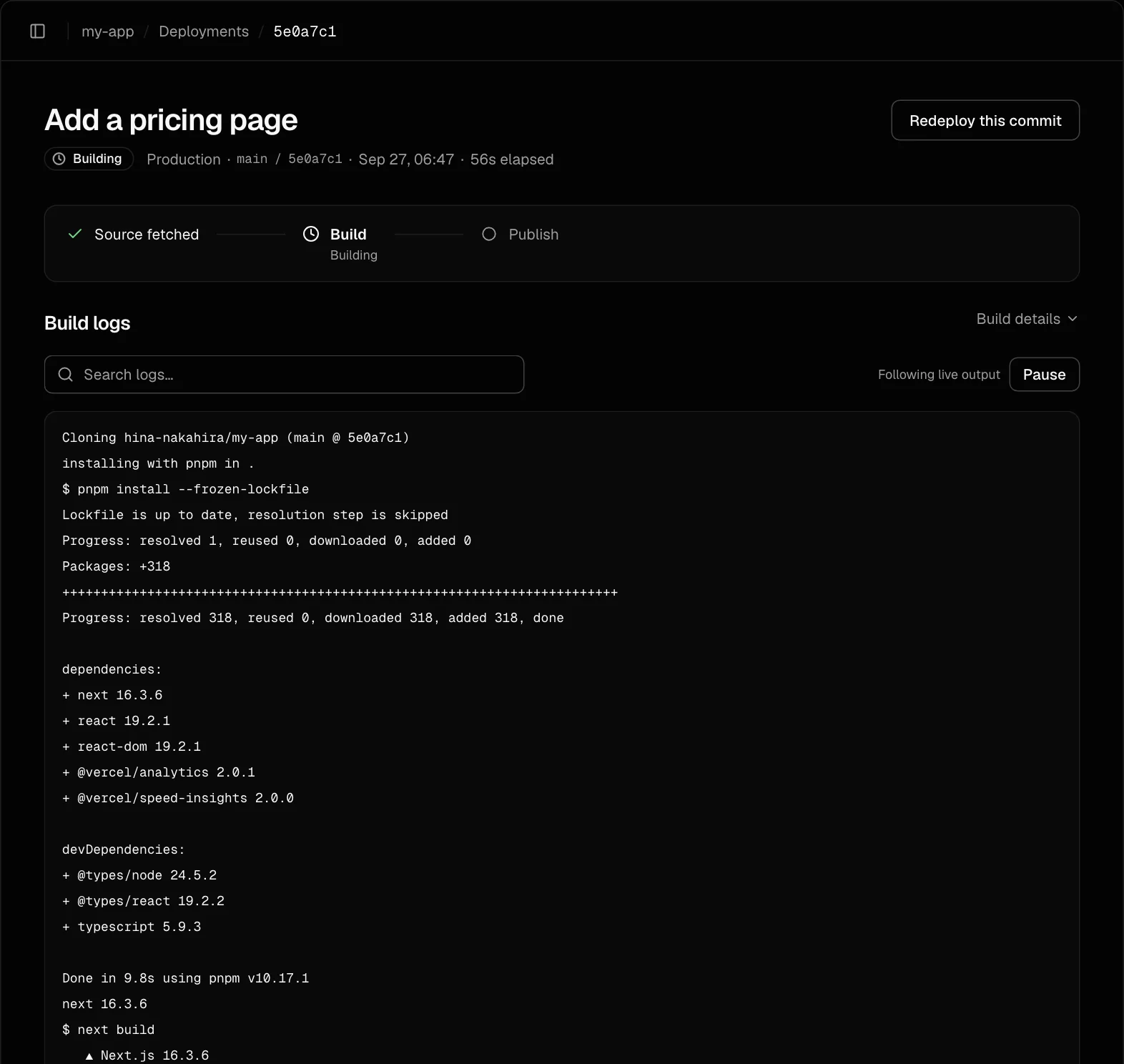
Once the build has finished, its log is kept: the first 128 KiB and the last 1.5 MiB, with a line saying how many bytes were left out between them. Use Search logs… to find a line, and Copy or Download to take the log elsewhere. Build details lists the deployment ID, what started it, the framework and its version, the build machine, the install and build commands it ran and when the build started and finished.
A build of a push is linked from GitHub as well: the deployment on the commit, the commit's status while the build runs or once it has failed, and the comment on the pull request all lead to this page. It opens for members of the project's team; anyone else is asked to sign in and then told there is no such page.
Build environment
A build clones the commit, installs dependencies and detects the framework. Next.js (recommended)
runs next build with the Arkor adapter. SvelteKit 2 and 3 run the project's build script, or
vite build when no script is defined. Supported official server adapters are automatically rebuilt
for Cloudflare, while the Static adapter retains static-only output; see
SvelteKit support.
Astro, React Router, TanStack Start, Nuxt and SolidStart
use supported official integrations to build SSR for Cloudflare without Arkor configuration.
Hono and fetch handlers are bundled as native Workers,
with automatic source entrypoint detection when no Wrangler configuration is present. A project can
run its own commands for installation or building.
- Node.js 26, whatever the repository asks for.
- Bun: SvelteKit builds select a dedicated Bun 1.4.4 when the command uses Bun, including
bun run --bun build, without changing that command. SvelteKit 3 requires Bun 1.4 or newer; the official Bun adapter requires SvelteKit 3. - Package manager: the one named in the
packageManagerfield ofpackage.json; without it, the one whose lockfile is in the repository (pnpm-lock.yaml,yarn.lock,package-lock.json,bun.lockorbun.lockb); without either, npm. The lockfile must be up to date: the install runs with--frozen-lockfile,--immutableornpm ci. Yarn Plug'n'Play is not supported; setnodeLinker: node-modulesin.yarnrc.yml. - Monorepos: set the project's root directory to the app. Dependencies are installed at the workspace root, and the framework build runs in the app's directory. Every project connected to a repository with Deploy on push on builds on each push to its production branch, whichever files changed.
- Build command: for Next.js, Arkor runs
next builddirectly; abuildscript inpackage.jsonrequires an override. For SvelteKit, Arkor runs that script with the detected package manager, or runsvite buildif no script is defined. Hono and fetch apps run their existing build script, otherwise a Wrangler build command, or bundle directly when neither exists. The supported SSR frameworks keep a custom build command or existing build script and otherwise run their framework's build command. - Environment: the project's environment variables,
secrets included, with
CI=1andNEXT_TELEMETRY_DISABLED=1, andNODE_ENV=productionfor the build but not the install, sodevDependenciesare installed. Values marked secret are masked as***in the log. - Private packages: the install sees the environment variables too. Commit an
.npmrc(or a.yarnrc.yml) that reads the registry token from one, such as//registry.npmjs.org/:_authToken=${NPM_TOKEN}, and addNPM_TOKENas a secret. The build holds no credentials for a dependency fetched from a private Git repository: to install one, add a token that can read the repository as a secret, and override the install command to give it to Git before the install runs. - Machine: 4 vCPU and 12 GiB of memory.
- Time: 5 minutes to fetch the source, 10 to install and 15 to build.
- Source: the commit alone, without its history, tags or Git submodules. Nothing is cached from one build to the next.
Custom install and build commands
To run something other than the detected install or next build — prisma generate before the
build, the build script in package.json, a Turborepo task — override the command, as you would
on Vercel. In the project's Settings › Git, under Build settings, or when you import the
repository, check Override next to Build command or Install command and type the
command. Choose Save changes, or Deploy when importing; the next build uses it. Uncheck
Override to go back to the detected command.
| Build command | Runs |
|---|---|
prisma generate && next build | A step before the build. |
pnpm run build | The build script in package.json, which runs next build. |
turbo run build --filter=web | The app's Turborepo task, and the tasks it depends on. |
- Each command is one line of up to 256 characters. It runs with
bash -cin the project's root directory, with the same environment and time limits as the detected one. In a monorepo that is the app's directory, as on Vercel: a command that has to run at the workspace root starts with acd, such ascd ../.. && npm ci. - The build command finds your dependencies' binaries: the
node_modules/.binof the root directory, and of each directory above it up to the repository's root, is on itsPATH. - For Next.js, the build command has to run
next buildfor the app in the root directory, directly or through a script. The Arkor adapter reaches it through the environment, so nothing in the app changes. A build that ends without the adapter's output fails. - For SvelteKit, the build command must run the Vite build for the selected app. Arkor collects supported adapter output automatically, including Static output; see SvelteKit support.
- For Hono and fetch handlers, the build command must leave the configured Worker entrypoint available. Arkor reads any generated Wrangler configuration after the build.
- For Next.js, the install command has to install
nextwhere the root directory finds it. That version is checked before the build, and the build output has to come from it. - With Turborepo, declare in
turbo.jsonany environment variable of your own that the build reads; the ones Arkor sets for the adapter get through already. If the project's environment sets up a Turborepo remote cache, add--forceso that the build runs rather than being replayed from the cache. - A command is stored as typed and shown in Build details. Don't write a secret in it: add it
as an environment variable and write
$NAMEinstead.
Over the Public API, set them as the Git source's buildCommand and
installCommand. A request that leaves one out keeps it, and null goes back to the detected
command.
Redeploy and roll back
- Deploy latest (Deployments page) and Redeploy (Overview) build the newest commit of the production branch.
- Redeploy this commit builds that commit again and publishes it. To go back to an earlier version, redeploy its commit.
A project has separate production and preview build queues, with one build at a time in each. A deployment waits when its queue is busy. A newer deployment in the same queue takes the waiting one's place, which is then Canceled.
When a build fails
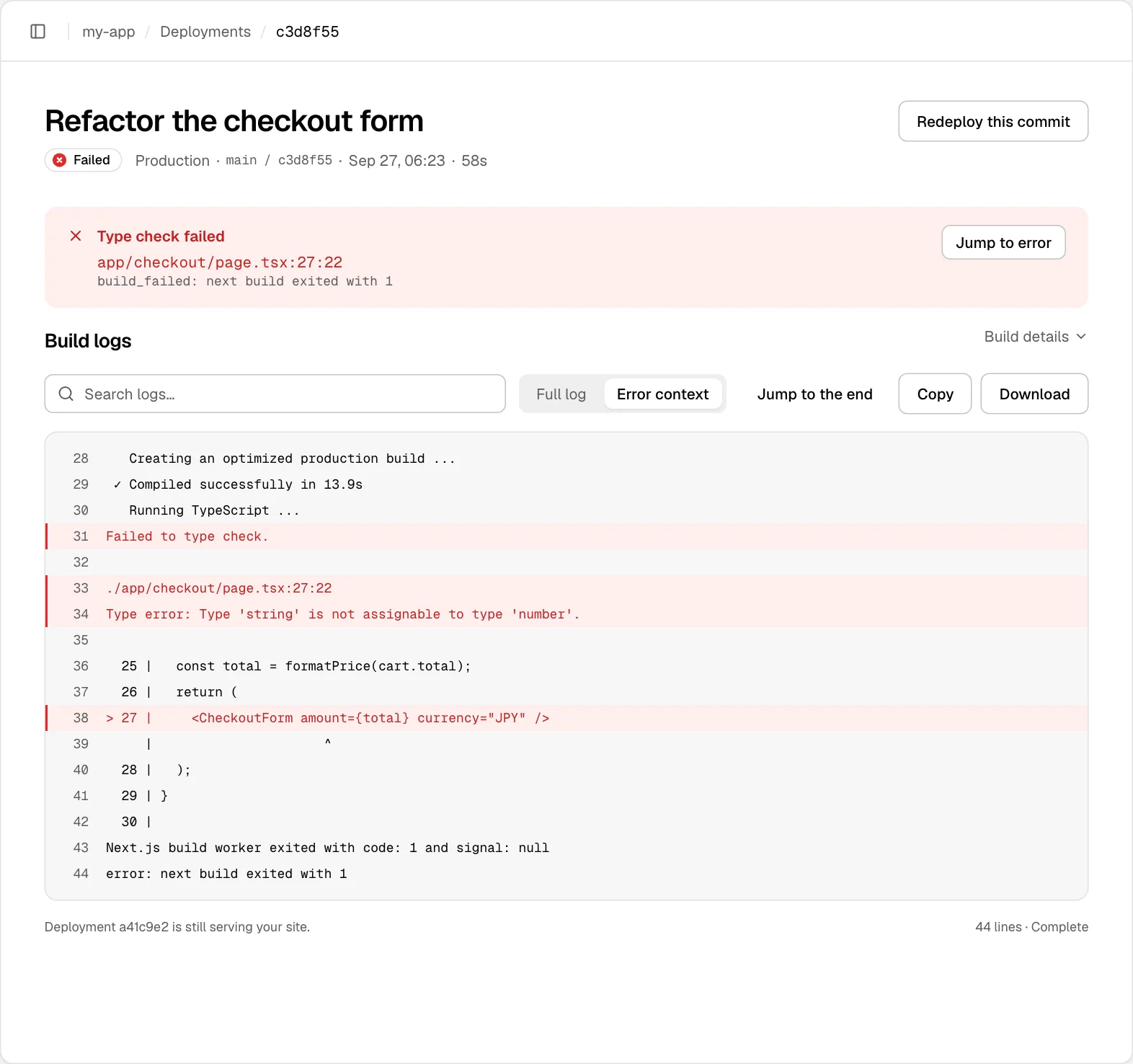
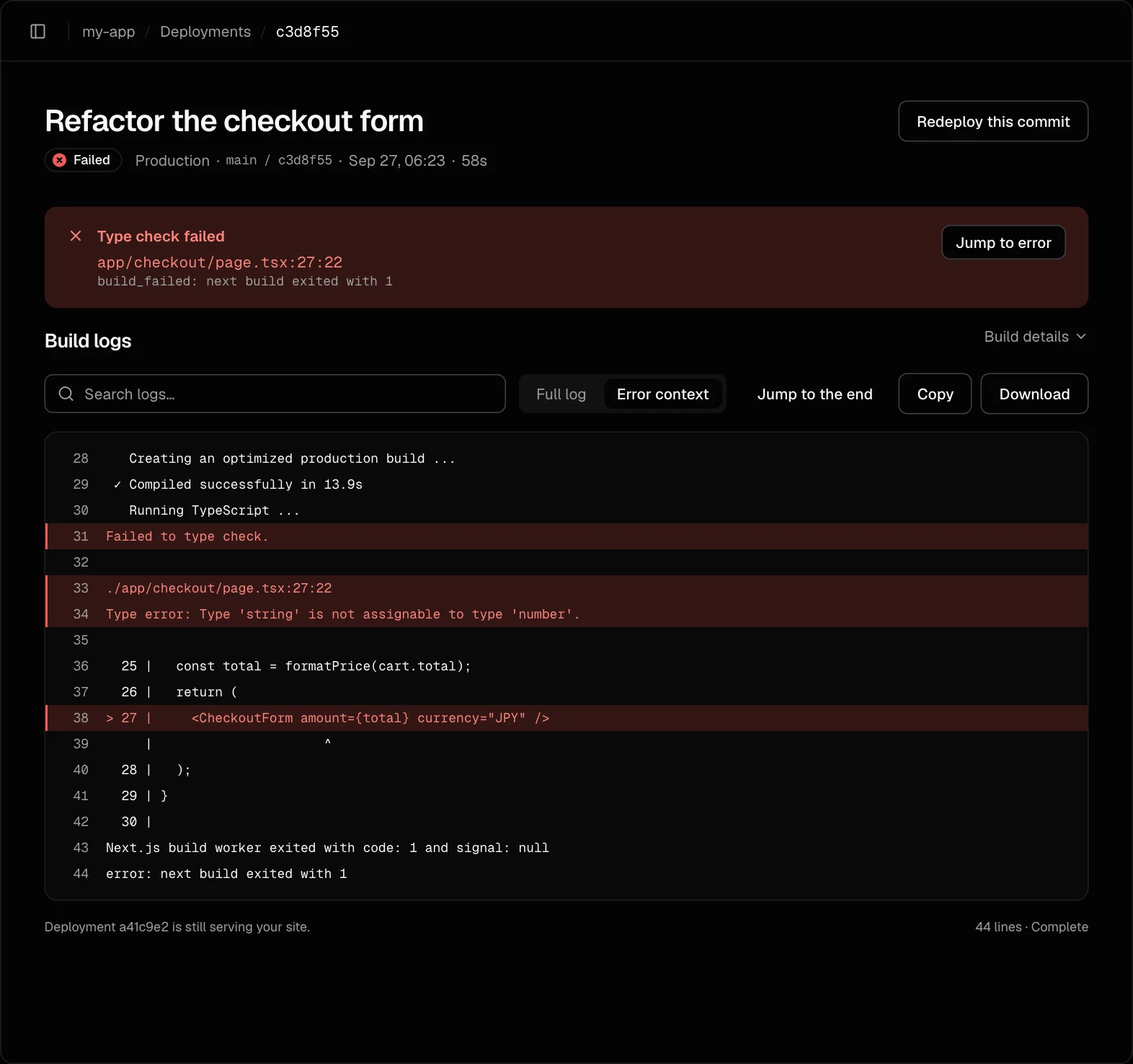
The deployment's page says what failed and, for a type error, where: choose Jump to error to see the lines around it. The published deployment keeps being served.
| Message | What it means |
|---|---|
| Fetching the source failed | GitHub did not hand over the commit: the App lost access to the repository, or the commit is gone. |
| This Next.js version is not supported | The version of next, or where it was found, is not one Arkor builds. |
| Installing dependencies failed | The package manager failed, or took longer than 10 minutes. |
| Build failed / Type check failed | next build or the build command failed or took longer than 15 minutes, or the adapter refused what it built. |
| The build output was not valid | The output is over a limit of a deployment, could not be read, or is not this build's. |
| The build timed out | The build stopped answering. |
| The build output did not upload intact, The build was lost | The build was lost on Arkor's side. Redeploy the commit. |
| Deployment failed | The build could not start, or a step after it failed, such as the check before the deployment is published. |
Troubleshooting goes through each one: what the line under it says, and what to do.