Deploy from GitHub
Connect GitHub, import a repository, and choose what gets built and when.
Arkor reads your repository through the Arkor GitHub App. Once a repository is imported as a project, every push to its production branch is built and published, until you turn off Deploy on push.
Connect a GitHub account
- On the Projects page, choose Add (or Import from GitHub when the team has no project yet).
- Choose Install GitHub App.
- On GitHub, pick the personal account or organization that owns the repository, and the repositories Arkor may read.
- GitHub brings you back to Arkor, where the account's repositories are listed.
Only the GitHub user who installed the App can connect it to a team. If the App is already installed on an account, the import page offers it under Connect an account: choose Connect and continue. The same installation can connect to several Arkor teams, including when another team already uses it. You must be an owner or admin of the team you connect it to.
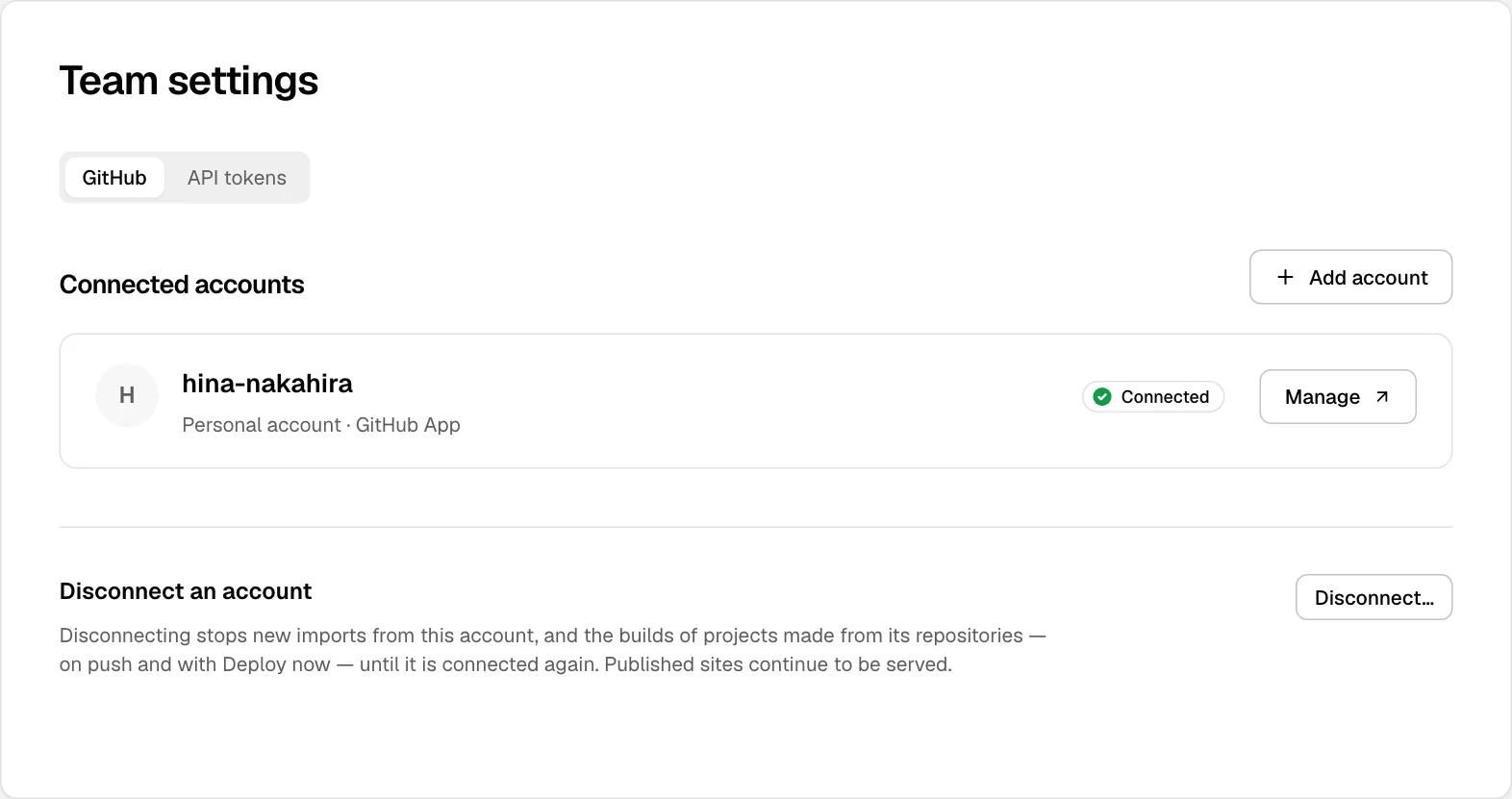
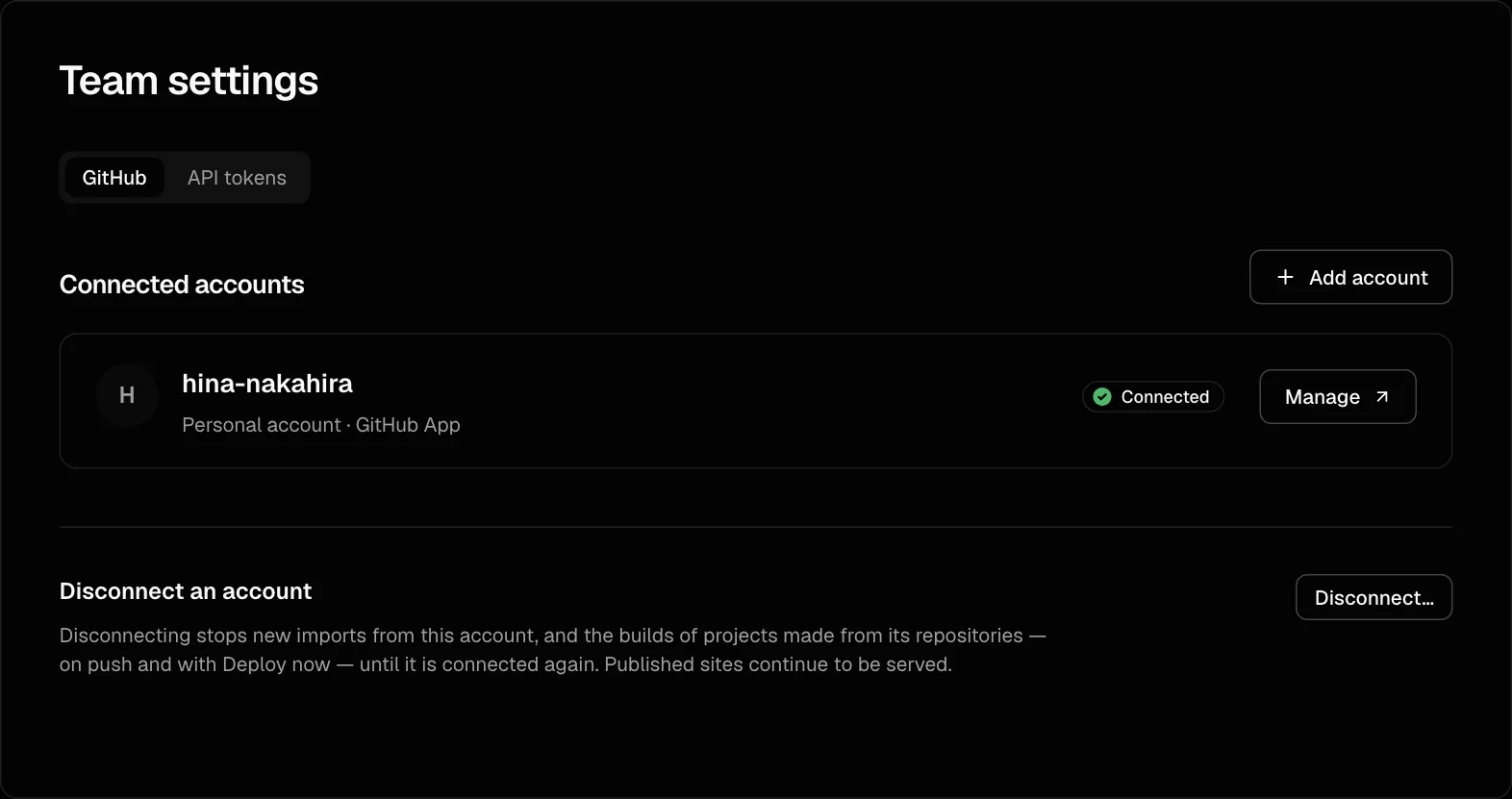
To let Arkor read more repositories later, choose Manage access on the import page, or Manage next to the account in Team settings › GitHub. Repository access is shared by every team connected to that GitHub App installation.
Import a repository
- Choose the repository.
- Set the Project name. It becomes the project's address,
https://<name>.arkor.app: lowercase letters, digits and hyphens, with at least one hyphen, up to 63 characters. A name another project already uses is refused. - Set the Root directory if the app is not at the root of the repository, for example
apps/webin a monorepo. One repository can be the source of up to 50 projects. - To run a command of your own in place of
next buildor the detected install, check Override next to Build command or Install command and type it; see Custom install and build commands. - Choose Deploy.
Arkor creates the project, connects the repository, and starts the first build of the default branch, which becomes the production branch. You are taken to the build's page.
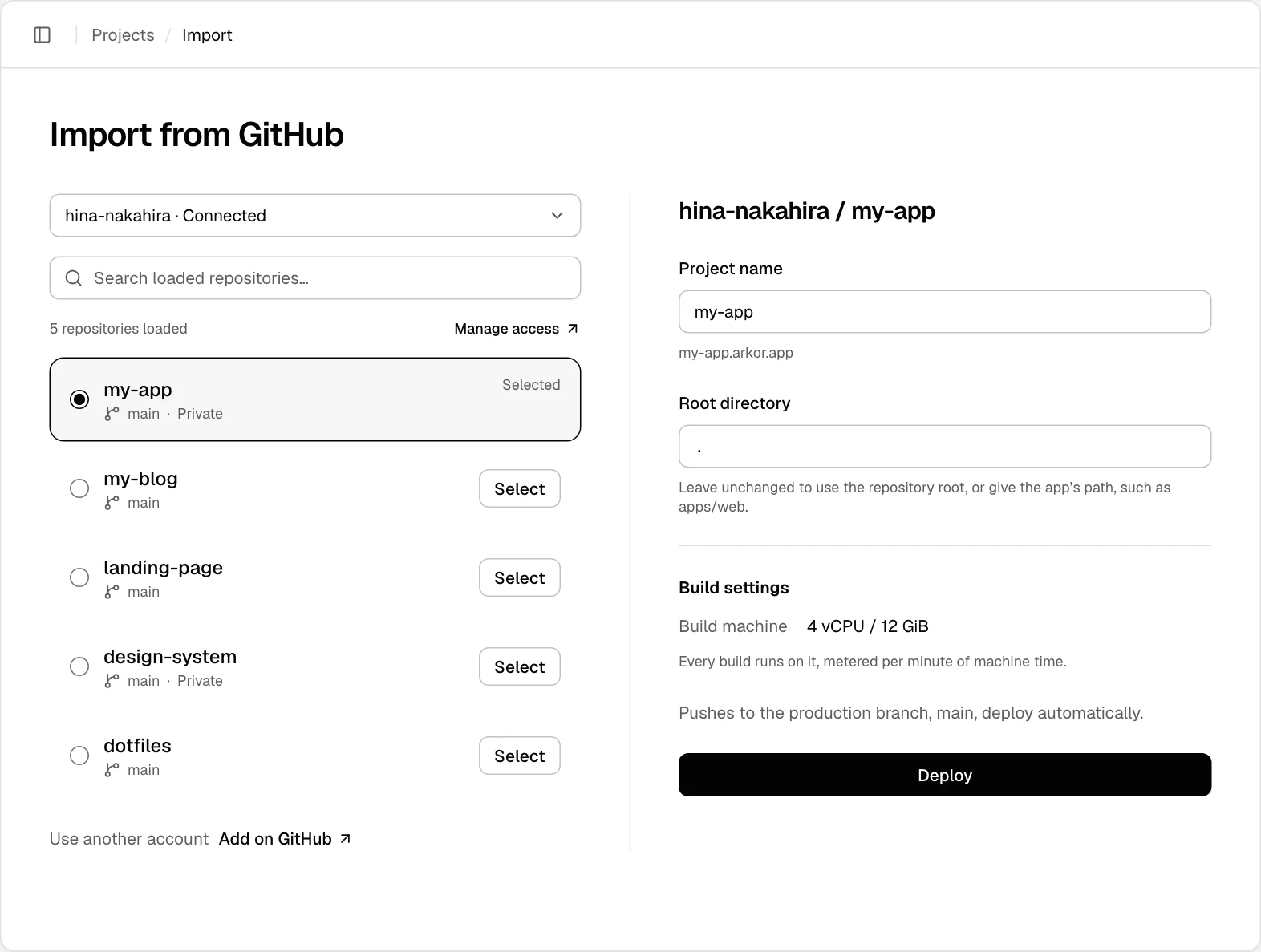
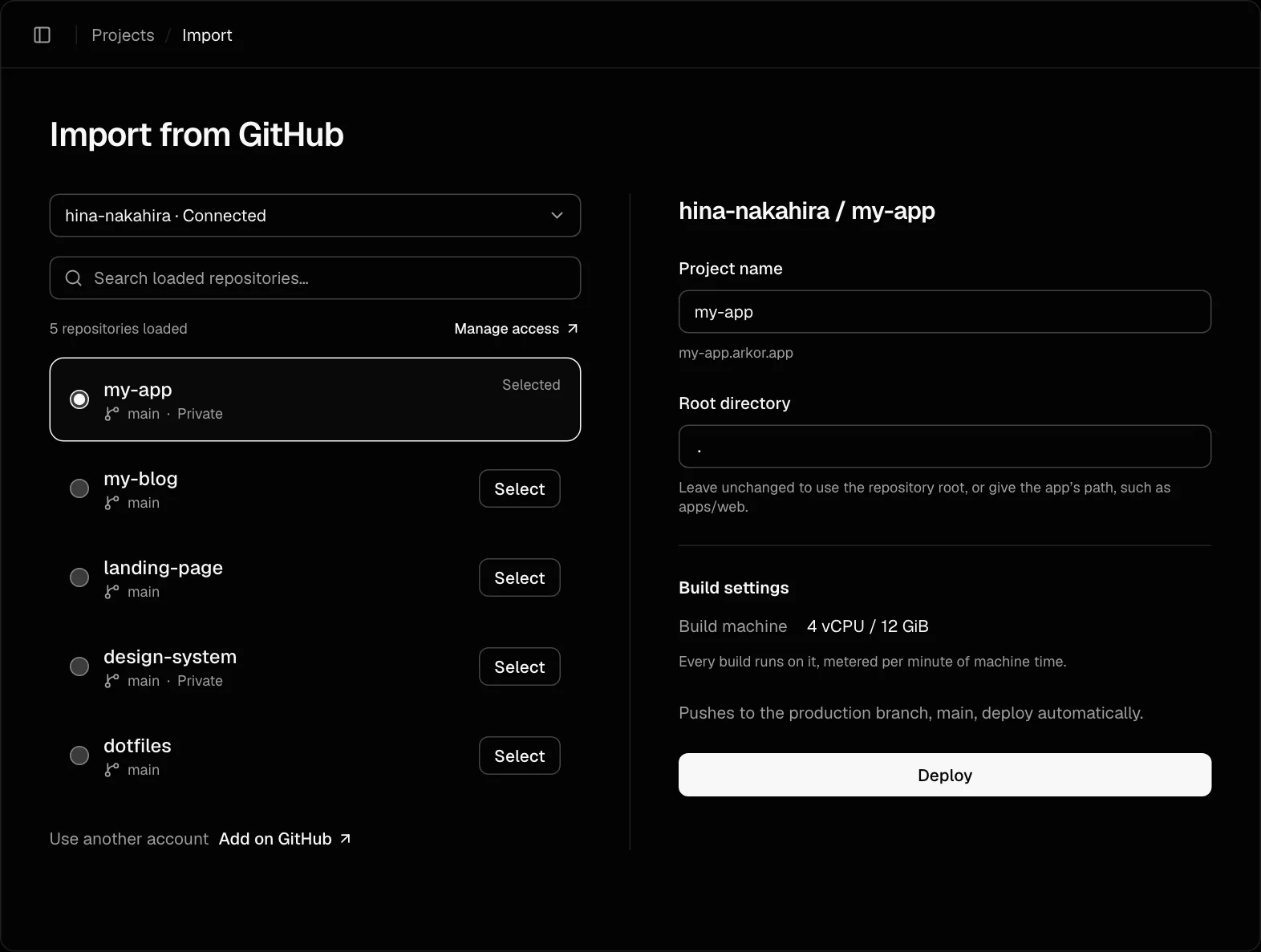
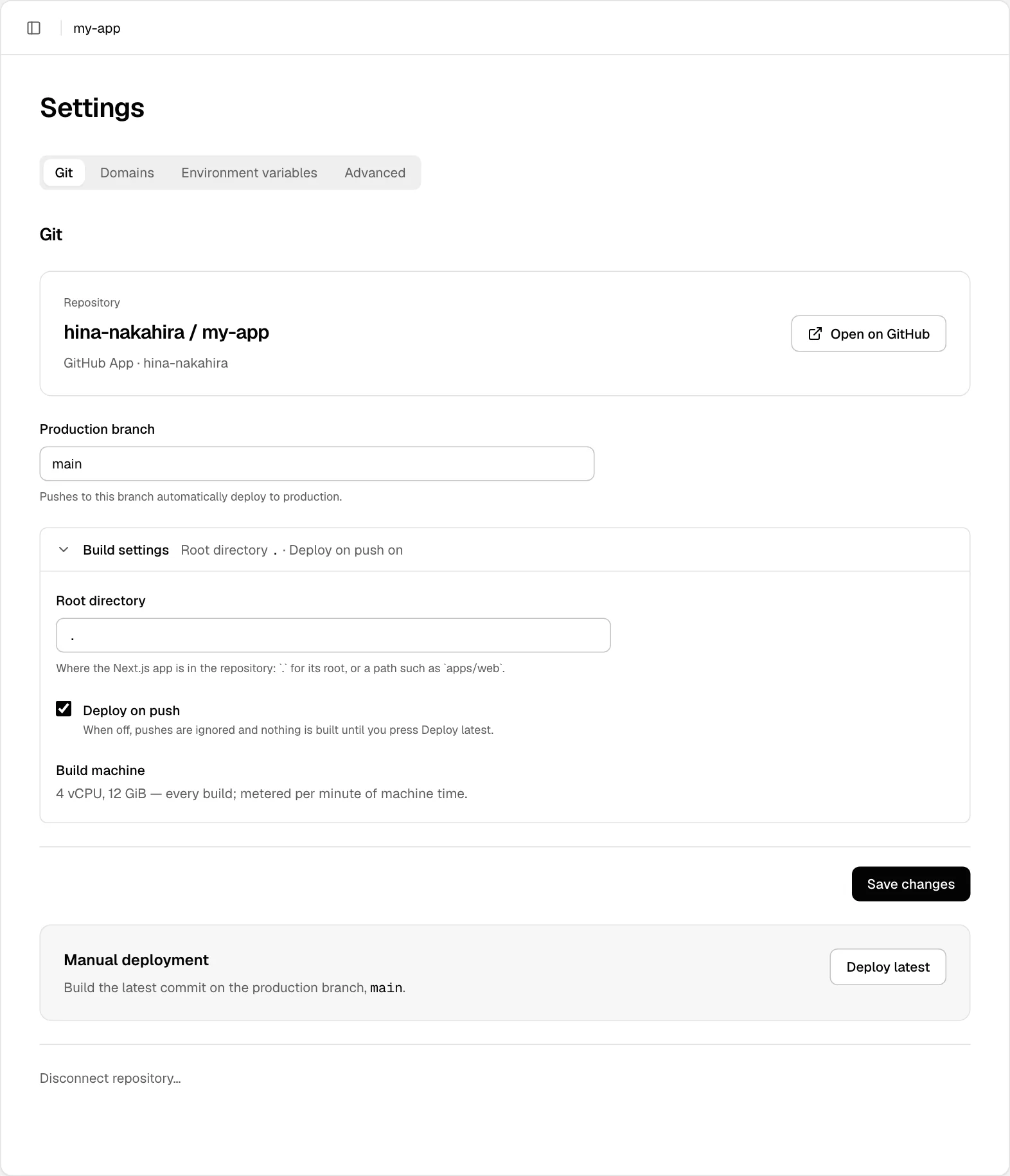
Every build runs on the same machine, 4 vCPU and 12 GiB of memory. What a build installs and runs is described in Builds and deployments.
Choose what gets built
Open the project's Settings › Git.
- Production branch: while Deploy on push is on, every push to this branch is built and, once the build and the checks after it pass, published. Pushes of tags are not built.
- Preview deployments: choose Every other branch automatically (the default), Pull requests selected by checkbox, or Disabled. Previews leave production and its domains alone. Every build is billed; use the checkbox mode when only some pull requests need a preview.
- Root directory: the application's directory in the repository.
- Build command and Install command: check Override to run a command of your own instead; see Custom install and build commands.
- Wait for GitHub checks: GitHub checks a production deployment waits for before it goes live; see Wait for GitHub checks.
- Deploy on push: turn it off to build only when you ask for it. Previews are then not built either.
Choose Save changes. The next build uses the new settings.
Wait for GitHub checks
A production deployment can wait for checks on GitHub before it goes live. Under Settings › Git, list them in Wait for GitHub checks, one name per line: the name of a GitHub Actions job. Each production deployment is built and checked as usual, then held until every check named there has passed on its commit, and only then goes live. Previews never wait.
- Only GitHub Actions jobs count. A check run of the same name made by another app, and commit statuses, are not read: anyone who can post one could otherwise pass the check in your place.
- A check passes when it ends as success, neutral or skipped, as a required check does on GitHub.
Any other end fails the deployment (
checks_failed), and nothing of it goes live. - A check is found by its exact name. One that never runs on the commit, such as a job a workflow skips for the paths it changed, is waited for until the limit.
- A deployment waits at most 24 hours, then fails (
checks_timeout). - A newer push to the production branch, or Deploy latest, takes the place of a deployment that is waiting.
- Deploy latest and Redeploy this commit wait too. Going back to an earlier commit waits for that commit's checks, which have usually passed already.
- Builds uploaded with the CLI do not wait. While a production deployment waits, the CLI and the API's other production work are refused for the project, as they are while any production build runs.
- Clearing the list lets a waiting deployment go live.
- Do not name a check that waits for Arkor itself, such as a job started by its deployment: the two would wait for each other until the limit.
Approve production before it goes live
GitHub's environment protection rules, such as required reviewers and wait timers, hold back GitHub Actions jobs, not deployments made outside GitHub Actions like Arkor's. To have production wait for an approval, name a job that runs in a protected environment:
name: Approve production
on:
  push:
    branches: [main] # your production branch
jobs:
  approve-production:
    runs-on: ubuntu-latest
    environment:
      name: production-approval
      deployment: false
    steps:
      - run: echo "Approved ${{ github.sha }}"
Add Required reviewers to the production-approval environment under the repository's
Settings › Environments, and list approve-production under Wait for GitHub checks.
The job, and so the deployment, waits until a reviewer approves it.
- Use an environment other than
production, where Arkor records its own production deployments. deployment: falsekeeps GitHub from recording a deployment of its own for the job; required reviewers and wait timers still apply.- On GitHub Free, Pro and Team, required reviewers and wait timers are available for public repositories only. In a private repository, any job can still be a check production waits for.
- Arkor checks the job's name, not the approval itself. Anyone who can change the workflows on your
production branch can pass the check without one, by taking the environment off the job or by
adding another job of the same name. A required check on GitHub has the same limit. Keep changes
to
.github/workflows/behind review, for example with aCODEOWNERSentry for it and branch protection that requires a code owner's approval.
Preview deployments
With Every other branch automatically, a push to any branch but production is built and served at addresses of its own. With Pull requests selected by checkbox, only selected open pull requests are built. Both modes require Deploy on push to be on.
To select pull requests:
- Choose Pull requests selected by checkbox under Settings › Git and save.
- Open a pull request from a branch in the same repository. Arkor adds the project's comment, including to pull requests already open when the setting was saved. Existing pull requests are processed in the background, so their comments appear gradually.
- Check the preview checkbox in that comment. You need write access to the repository. Arkor builds the branch's latest commit, then keeps building new pushes while the checkbox stays on.
Unchecking stops future builds and keeps the published preview available. Closing the pull request stops its approval from selecting future builds. Fork pull requests are not built. In a monorepo, each project's comment selects previews independently.
A preview is built and validated as production is, and served at these addresses:
| Address | What it serves |
|---|---|
https://<project>-git-<branch>.arkor.app | The branch's newest build. The next push to the branch moves it. |
https://<project>-dpl-<id>.arkor.app | That one build, for as long as it is kept. |
A production deployment has an address like the second one too, while it is kept; see A deployment's own address.
The branch part is the branch's name in lowercase, with anything a hostname cannot hold written as a
hyphen: feature/login is served at my-app-git-feature-login.arkor.app. An address that would be
too long is cut short and ends in a hash. A branch whose name has nothing a hostname can hold, or
whose address another branch took first (feat/a and feat-a come out the same), has no branch
address: its previews are served at their build's address only.
On the Deployments page, filter by Environment to list the previews; each one has Open this build, and Open this branch when its branch has an address.
A preview leaves production alone:
- It is served at its own addresses only, never at the project's address or its custom domains.
- It runs no cron jobs.
- It reads only the environment variables marked Preview; see Production and preview.
- Access protection guards it as it guards the project.
One preview builds at a time for a project, beside production: a push to another branch takes the place of a preview still waiting for its turn. A preview is kept until the branch's next build replaces it, the branch is deleted, the project's access protection changes, or the team's plan lapses; the branch's next push makes another. Its build minutes and requests count as any other.
Deploy without pushing
- Deploy latest, in Settings › Git or on the Deployments page, builds the newest commit of the production branch.
- Redeploy, on the project's Overview, does the same.
- Redeploy this commit, in the menu of a deployment on the Deployments page, builds that commit again and publishes it. Use it to go back to an earlier version.
- Branch, tag or commit, in Settings › Git, builds the branch, tag or commit you enter and publishes it to production. The production branch stays as saved, and the next push to it deploys that branch again.
- Re-run, on a build's check run on GitHub, builds that commit again; see Re-run a build.
At most six builds can be started per minute for a project, and six for the repositories of one GitHub account. Past that, the dashboard says Too many builds started recently; wait a minute., and a push that arrives meanwhile is recorded as a failed deployment; see rate_limited.
On GitHub
A build of a push is written back to its commit and to the branch's pull requests as it goes:
- A deployment, with View deployment leading to the preview, or to the site for production.
- A commit status,
arkor/<project>/<preview or production>: pending while the build runs, then whether the deployment is served. It links the deployment once it is served, and the build log while the build runs or once it has failed. - A check run,
arkor/<project>/<preview or production>/build: how the build went, with its build log under Details. - A comment on each open pull request of the branch, edited as the build moves, with the build log beside what it says.
<project> is the label of the project's own address. To make a pull request wait for its preview
in a branch protection rule, require the commit status, which says the preview is served, or the
check run, which says it was built. The build log opens for members of the project's team: anyone
else is asked to sign in, and then told there is no such page.
Re-run a build
Re-run on a build's check run builds its commit again, as a push of it would be built now, even if its deployment is live. Re-run all checks does the same for every project and target built from the commit, ten at a time: re-run any past that on its own. Only the branch's newest commit is built again. For an older one, or when the project's settings would not build a push of the branch, nothing is built, and the check run says why at the top of its summary while keeping its result. While a build of the commit is still running, Re-run starts nothing: that build's own check run ends what you asked. A re-run counts toward the six builds a minute.
Disconnect
- A repository from a project: Settings › Git › Disconnect repository…. Pushes no longer deploy the project; what is published keeps being served. The root directory and the commands are removed with the connection: to connect the repository again, import it with the original address label and set them again. Changing the display name does not change that label.
- A GitHub account from the team: Team settings › GitHub › Disconnect…. Imports from that account and builds of its projects in this team stop until it is connected again; other teams stay connected and published sites keep being served. The App stays installed on GitHub. Uninstalling it there takes away its access for every connected team.