
Access protection
Keep a project private behind a password, share links, Google or GitHub sign-in, or team membership.
Access protection puts a gate in front of a whole project: every page, file and API route, at
<project>.arkor.app, at every custom domain and at every
preview deployment. A visitor who has not come in through one of the
ways you allow sees a challenge instead, and your app does not run for them.
It is off until you turn it on. Owners and admins can change it. While the team's plan has lapsed, only what takes access away still works: Sign everybody out, Revoke and Take the key back.
Turn it on
- Open Access protection in the project's sidebar.
- Under Ways in, tick one or more:
- A password or a code: the password you set below, and any code you issue.
- A share link: links you issue and send.
- Signing in with Google or GitHub: only the addresses and accounts you list.
- Being a member of this organization: people already signed in to your team on Arkor.
- For a password, enter it under Password: 8 to 128 characters.
- Choose Save.
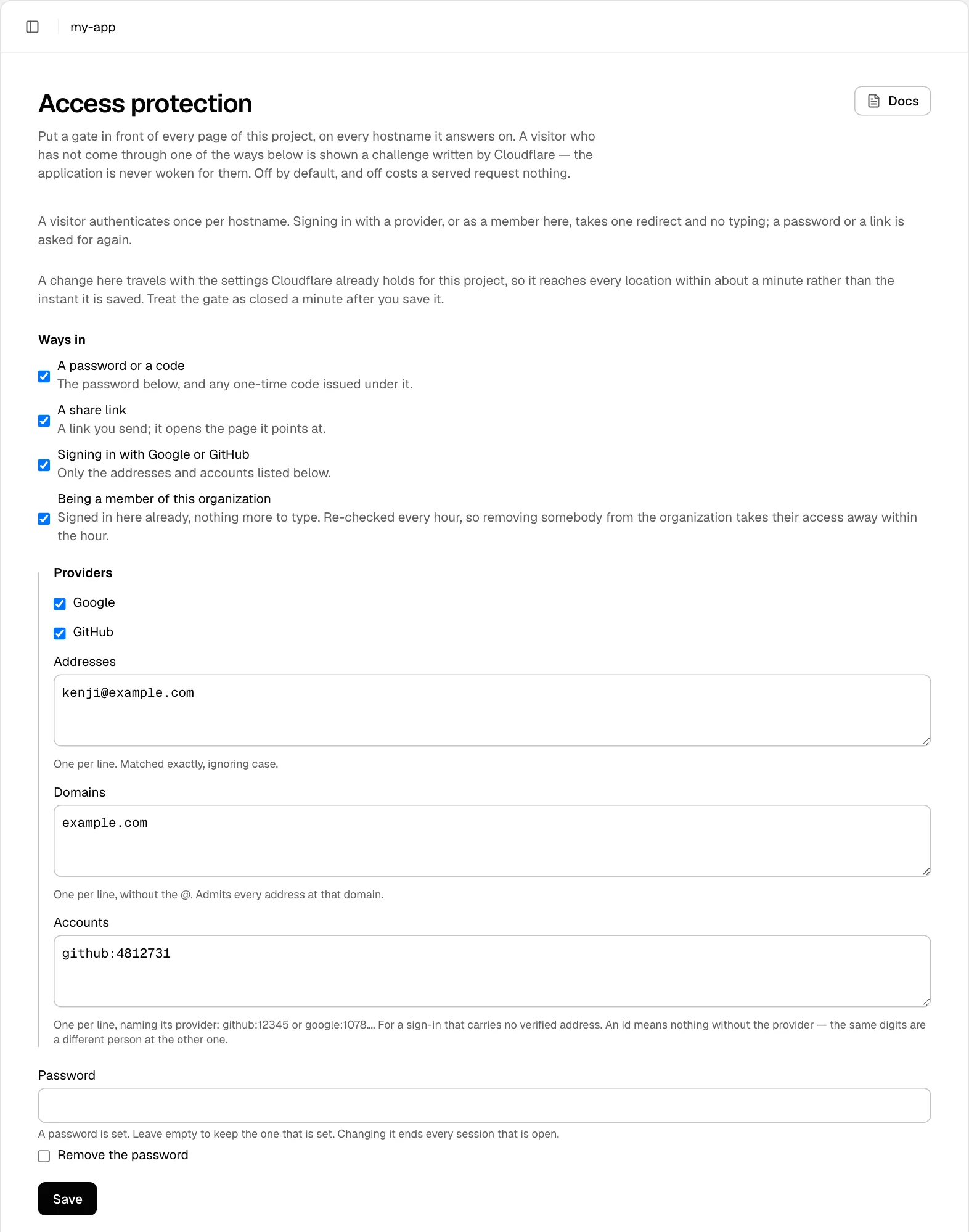
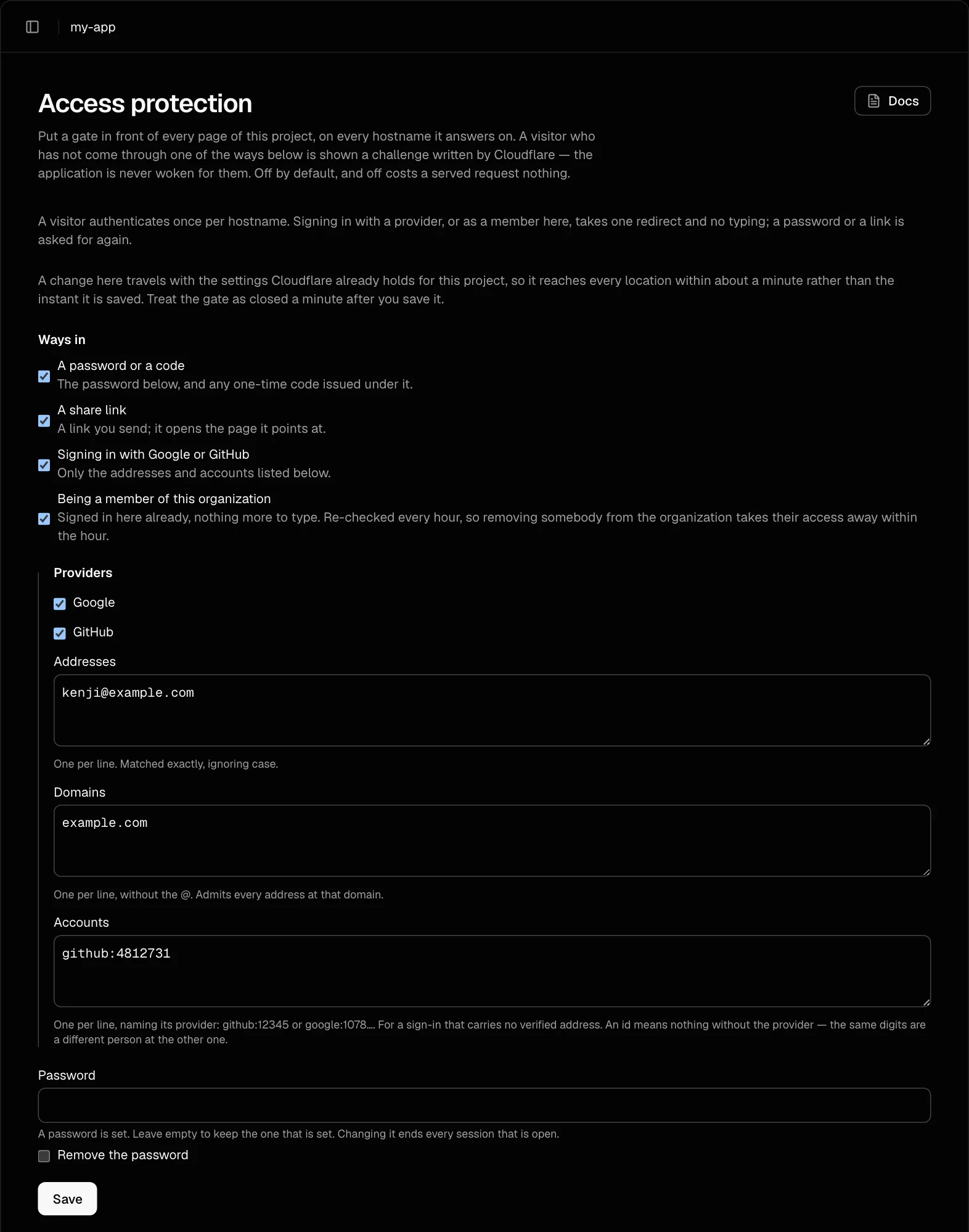
A change takes about a minute to reach every location. One that has not served the site for a while can still answer a request or a few as before the change, however long after it. Turn protection on before you share a project's address, not after.
What a visitor sees
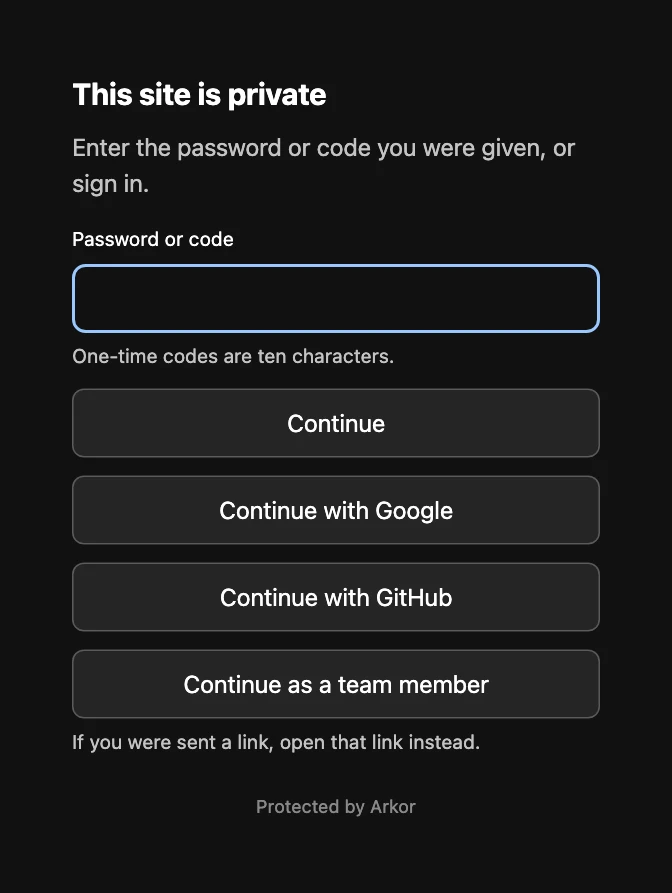
A visitor without access sees this page, in English or Japanese following their browser's language. It shows only the ways in you allow, and cannot be styled.
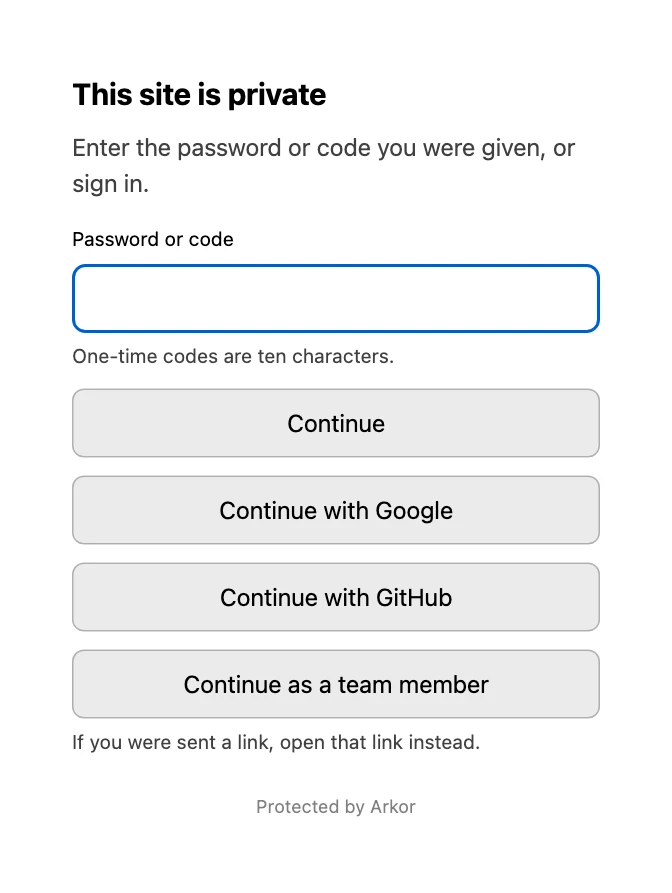
- After coming in, a visitor stays in for 7 days. A team member is checked again every hour.
- Access is per hostname. Moving from
my-app.arkor.appto your custom domain asks again: in one redirect for Google, GitHub or team members, and for the password or link again otherwise. - A request that is not a page, such as a
fetchfrom a script, is answered401with no body.
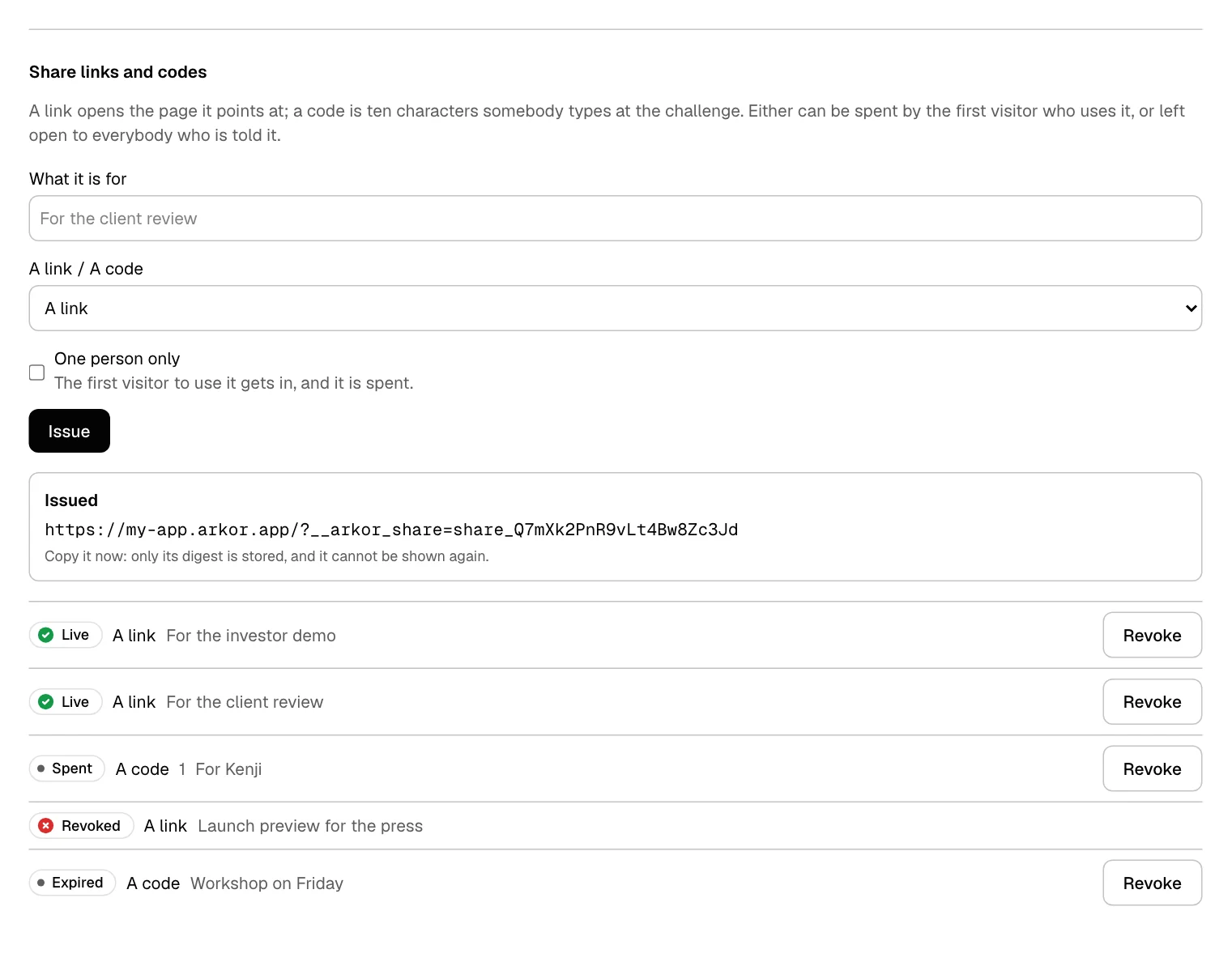
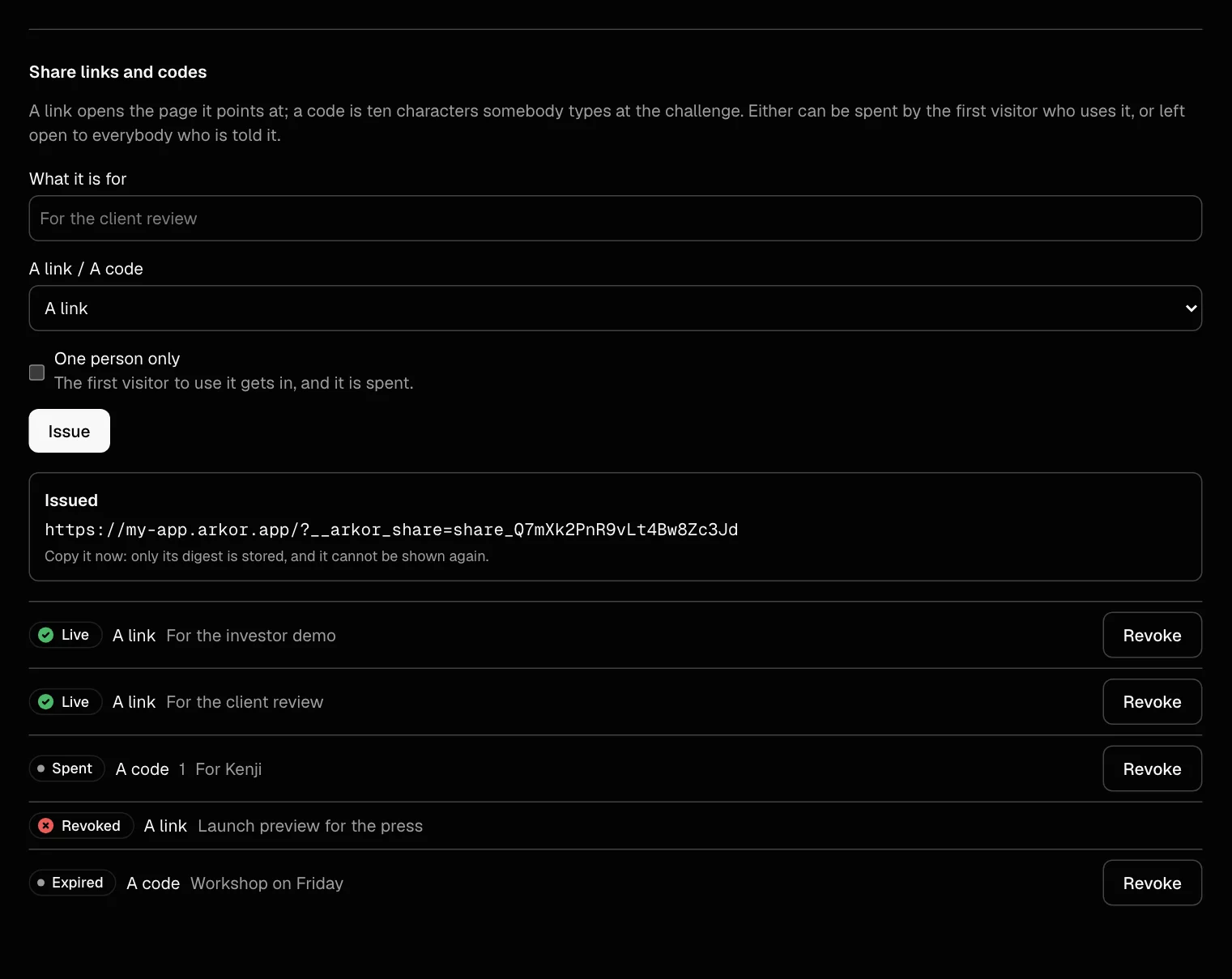
Under Share links and codes, enter What it is for, choose A link or A code, and choose Issue. Copy what is issued at once: it is shown only then.
- A link opens the page it points at:
https://my-app.arkor.app/?__arkor_share=…. Point it at any path of the project. Arkor removes the token from the address before the page loads. - A code is ten characters the visitor types at the challenge. Codes work only while A password or a code is ticked.
- Tick One person only for a link or code that the first visitor spends. Only a browser opening the page spends a link: a chat app's preview of it or an uptime check does not.
- Each is Live until it is spent, revoked or expired. Choose Revoke to stop one.
- A project may hold up to 200 live links and codes.
- Links need Safari 16.4 or later. On an older Safari, send a code instead.
Google and GitHub
Tick Signing in with Google or GitHub, choose the Providers, and list who may come in, one entry per line:
- Addresses: email addresses, matched exactly, ignoring case.
- Domains:
example.comadmits every address at that domain. - Accounts:
github:<user id>orgoogle:<account id>, for an account whose sign-in carries no verified address.
Only verified addresses count. With every list empty, nobody can come in this way. You do not register anything with Google or GitHub.
Sign everybody out
Choose Sign everybody out to send everybody who is in back to the challenge, within about a minute. Changing or removing the password, and removing a way in, a provider or an allowed entry, do the same. Adding one does not.
Removing somebody from the team, or their leaving it, sends back only the people who came in as team members, within about a minute, on every project that lets members in. Members still in the team choose Continue as a team member again; nobody who came in another way is signed out.
A location that has not served the site for a while can still answer with the settings from before the change — a request or a few, however long after the change they come — and uses the new ones after that.
Automation
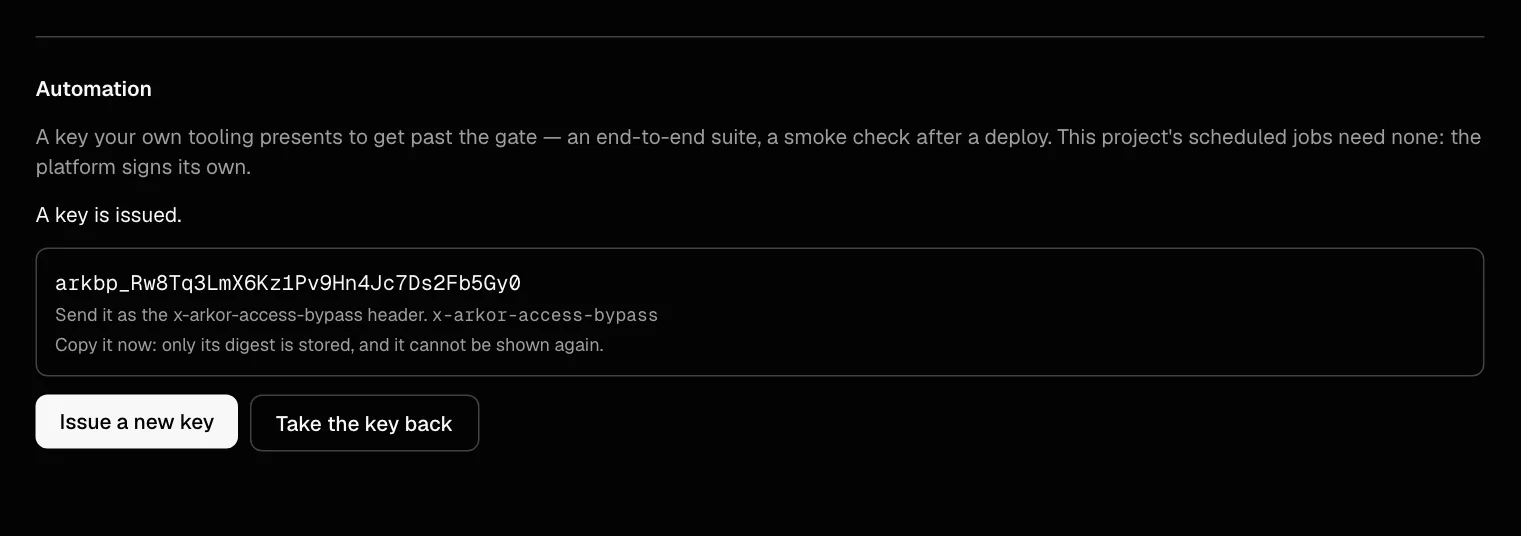
For your own tests and checks, choose Issue a key under Automation, and send the key in the
x-arkor-access-bypass header:
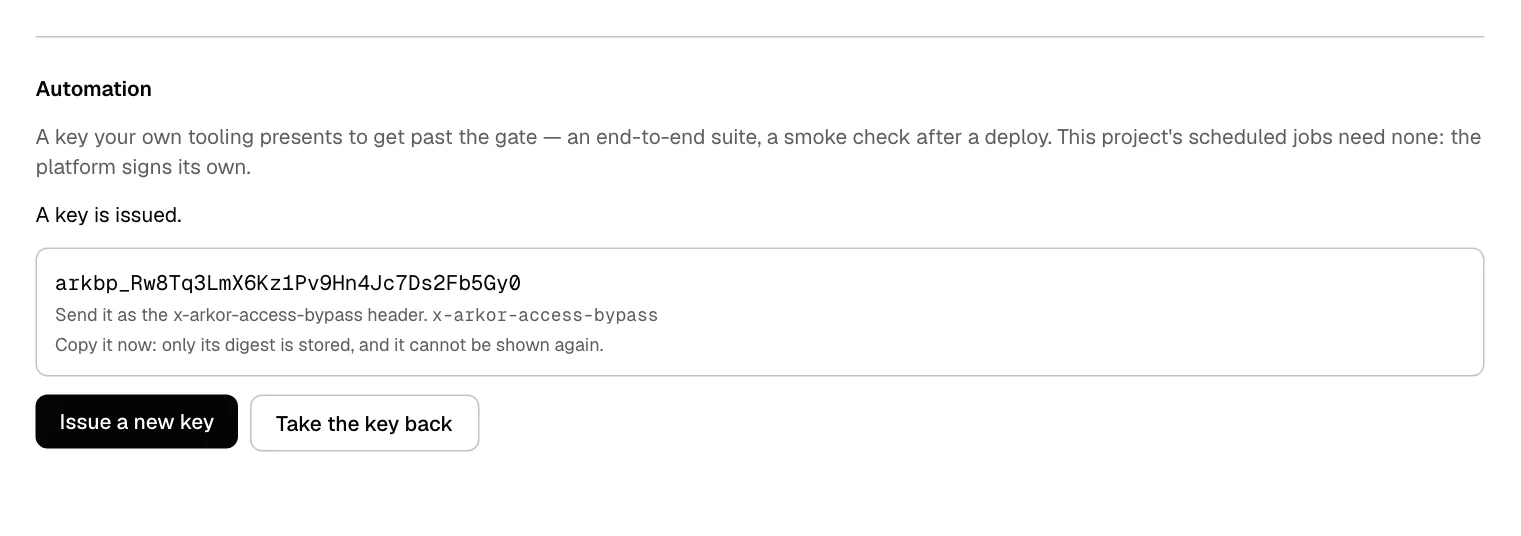
curl https://my-app.arkor.app/ -H "x-arkor-access-bypass: $ARKOR_ACCESS_KEY"Issue a new key replaces the key, and Take the key back removes it. Your project's cron jobs need no key: they pass the gate on their own.
Through the API
/v1/projects/{projectId}/access reads and changes the settings; an empty modes turns protection
off. See Public API for tokens.
curl -X PUT https://api.arkor.dev/v1/projects/$PROJECT_ID/access \
  -H "authorization: Bearer $ARKOR_TOKEN" \
  -H "content-type: application/json" \
  -d '{
    "modes": ["password", "link"],
    "oauth": { "providers": [], "emails": [], "domains": [], "accounts": [] },
    "password": { "action": "set", "value": "a long passphrase" }
}'| Method and path | What it does |
|---|---|
GET, PUT …/access | Read or change the ways in, providers and lists |
POST …/access/sessions/revoke | Sign everybody out |
GET, POST …/access/credentials | List, or issue a link or code |
DELETE …/access/credentials/{credentialId} | Revoke a link or code |
POST, DELETE …/access/bypass | Issue the automation key, or take it back |
Through the API, a link or code can also be given an expiry: expiresAt, at least a minute ahead.
Good to know
grantand__arkor_sharein a URL's query are Arkor's own. On every project, protected or not, a request that carries either is redirected to the same address without it.- Paths under
/__arkor/access/belong to the gate while protection is on. - Not available: allowing IP addresses, protecting a single deployment, and identity providers other than Google and GitHub.