
Custom domains
Serve a project at a hostname you own, such as www.example.com.
Every project is served at https://<project>.arkor.app. That address is shared by every project
on Arkor and is meant for checking builds; serve production traffic at a domain of your own.
Custom domains come with both plans: one per project on the
free plan, and up to five on Pro.
Add a domain
-
Open the project's Settings › Domains.
-
Enter the hostname, such as
www.example.com, and choose Add. -
The first time, Arkor asks you to show that the hostname is yours. Add the TXT record it shows at your DNS provider: name
_arkor-verify.<your hostname>, with the value given. Once DNS has published it, which can take a few minutes, enter the hostname and choose Add again.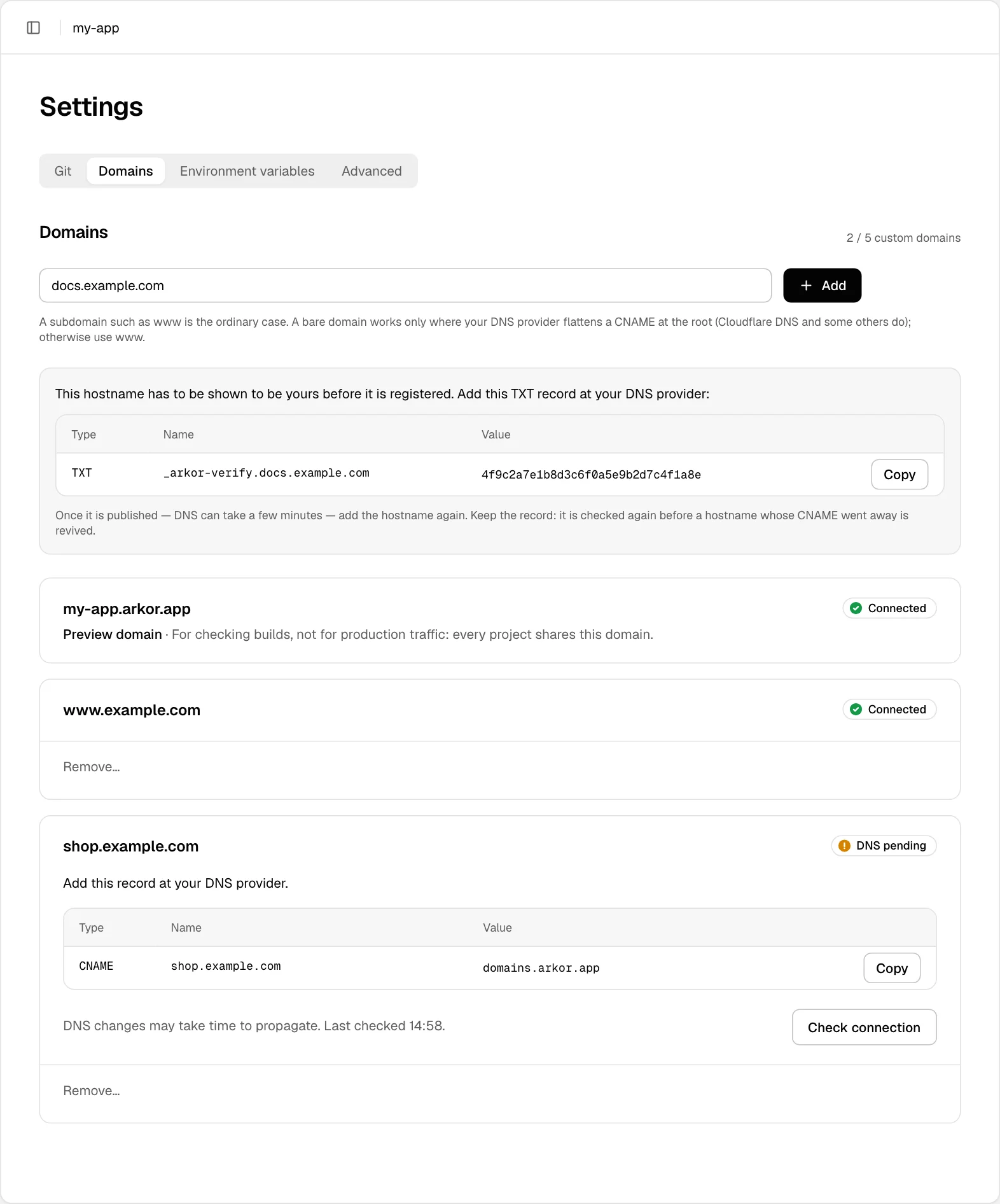
-
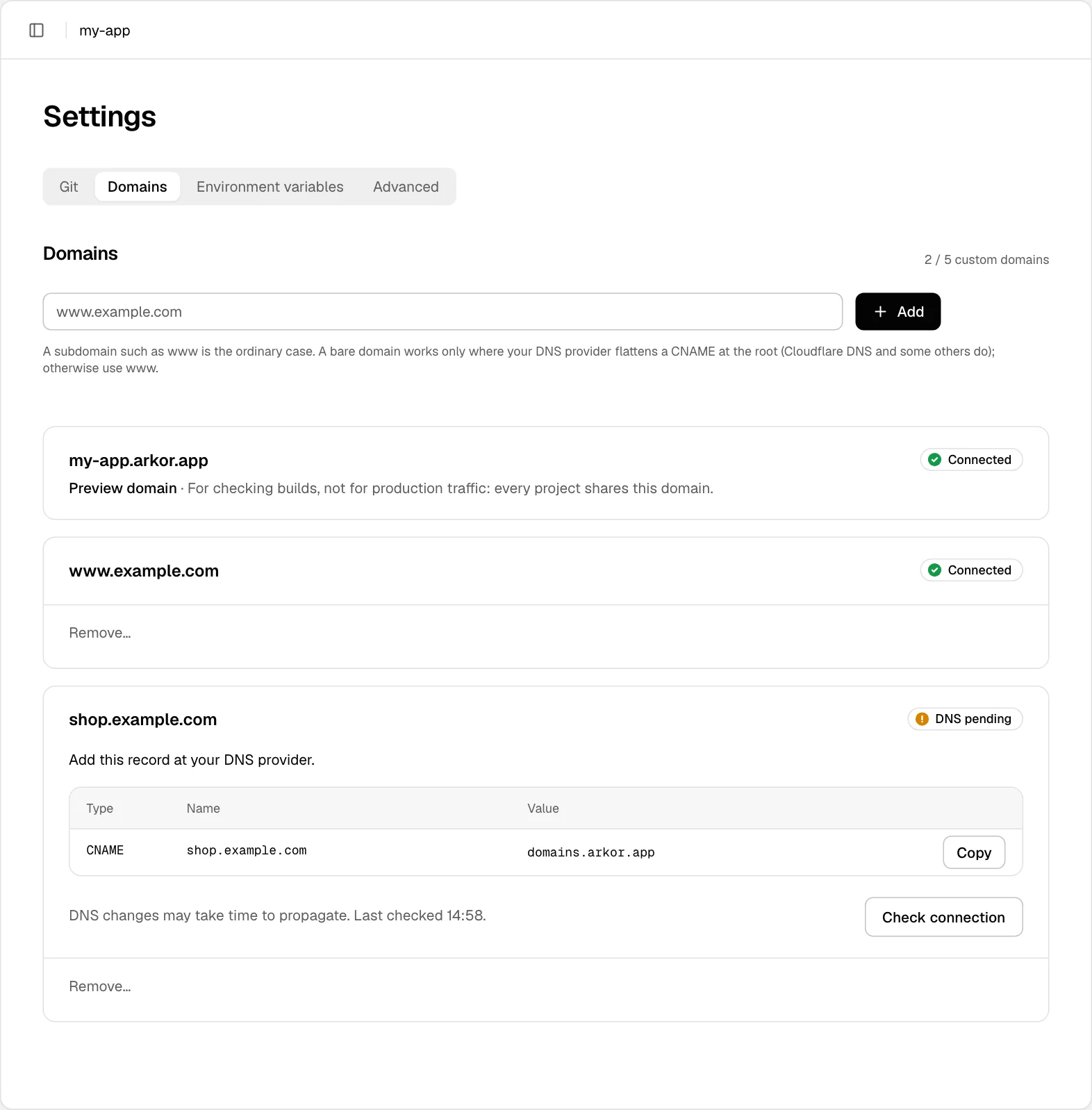
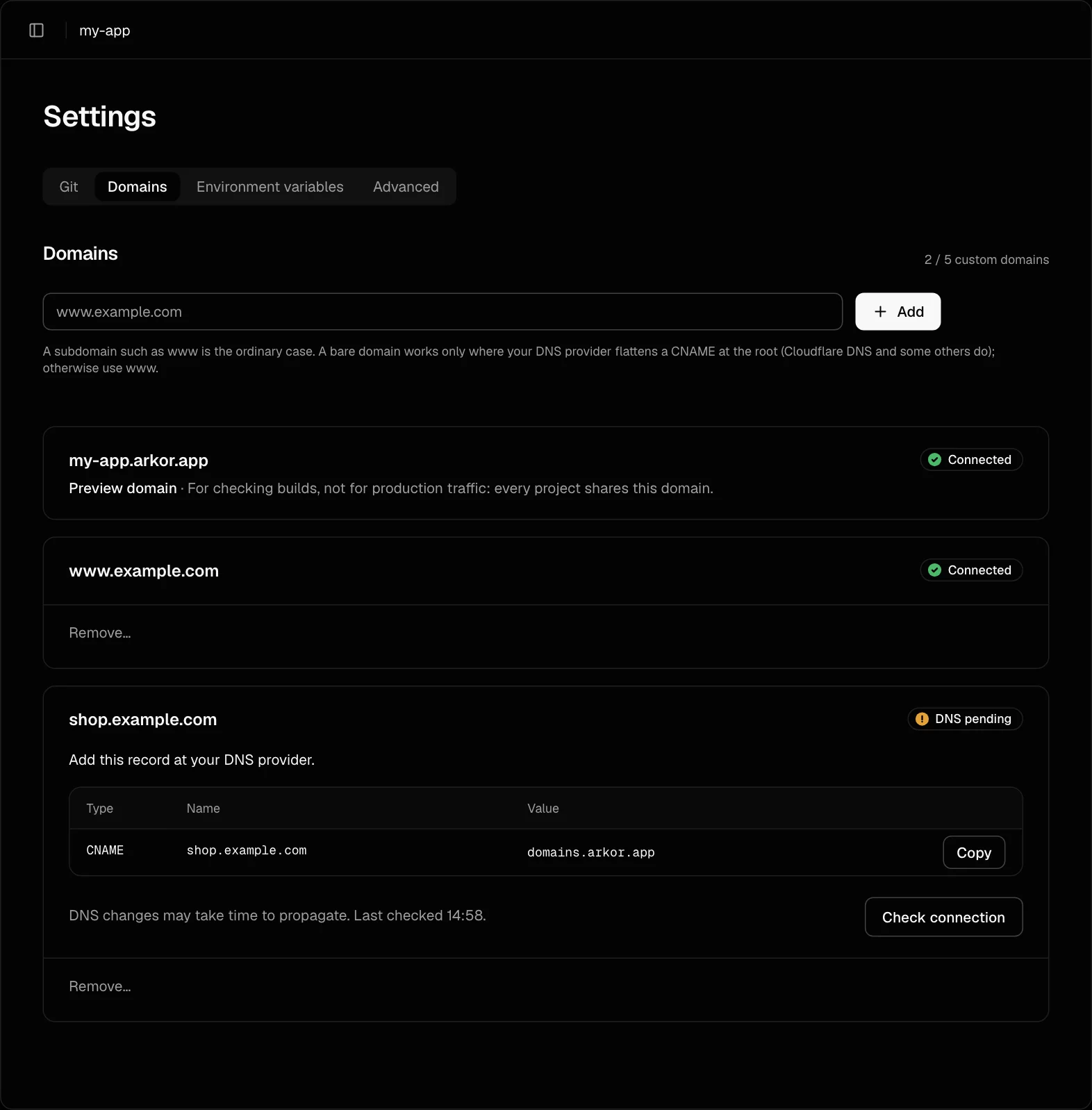
Add the CNAME record Arkor shows: your hostname, pointing at
domains.arkor.app. -
Wait for the domain to show Connected. Cloudflare issues the certificate once it sees the CNAME. Choose Check connection to look again now.
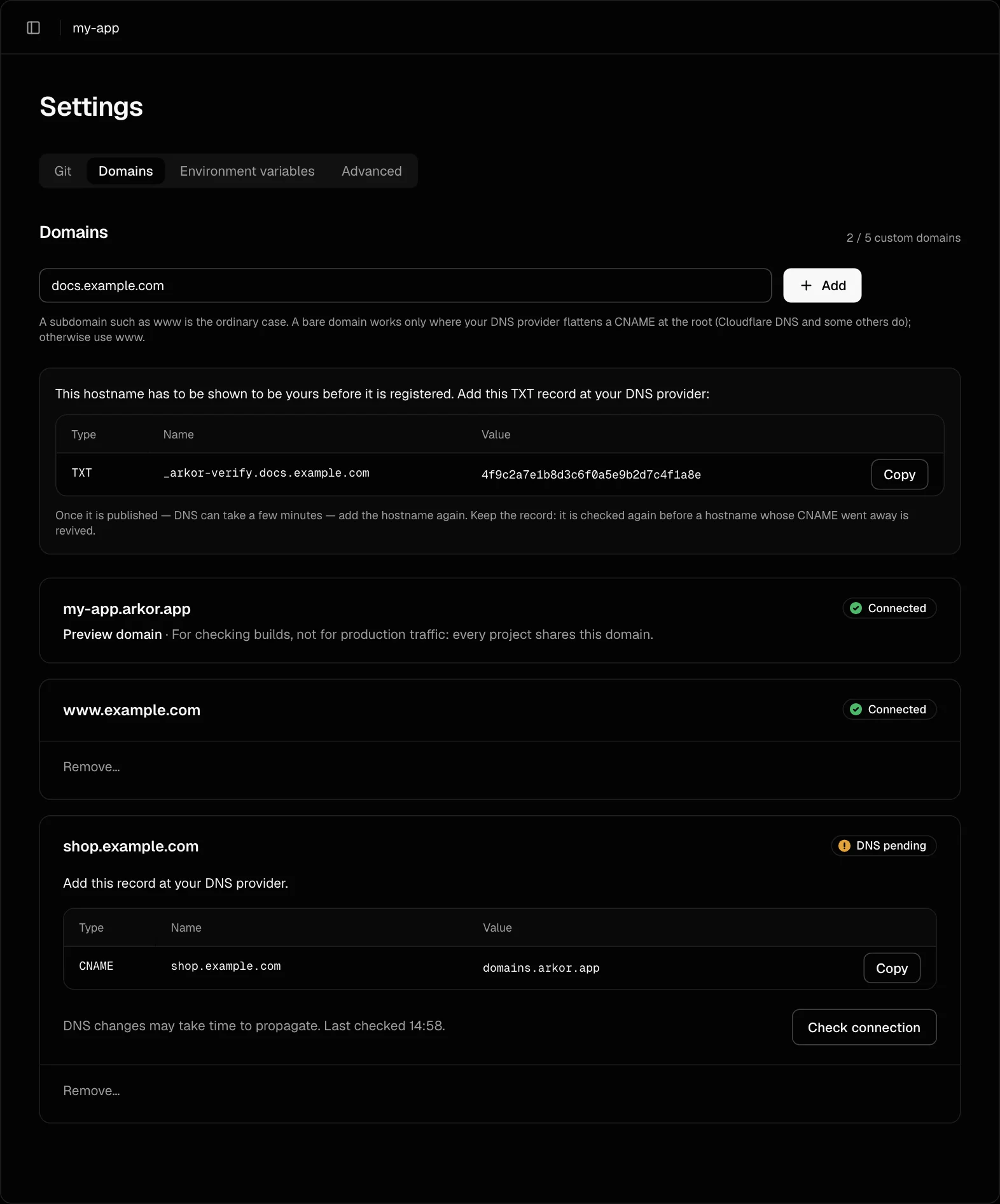
Keep the TXT record after the domain is connected: it is checked again if the CNAME is ever removed and added back.
The site is served the same way on every domain the project has. Your app sees the hostname the
visitor asked for in the x-forwarded-host request header.
Set up with Cloudflare
If the domain is on Cloudflare and your team has
connected its Cloudflare account, choose Add and set up in Cloudflare
instead of Add. Arkor finds the zone the hostname is in and adds both records there — the
_arkor-verify TXT record and the CNAME to domains.arkor.app — then adds the domain.
- The CNAME is added as DNS only. Proxied, every request would run your zone's own rules and cache before reaching Arkor; DNS only is faster.
- If A, AAAA or CNAME records already use the hostname — the site it serves today — Arkor lists them and changes nothing until you choose Replace and set up.
- If DNS does not show the new records yet, choose Check again in a minute.
- On a domain waiting for its CNAME, Fix DNS in Cloudflare adds the records it is missing.
Removing a domain leaves its records in your zone; delete them from Domains if you no longer need them.
Domain status
| Status | What to do |
|---|---|
| Connected | Nothing: the domain is served. |
| DNS pending | Add the CNAME record shown, then wait or choose Check connection. |
| SSL pending | Wait: the record is in place and the certificate is being issued. |
| Not pointing here | The CNAME no longer points at domains.arkor.app. Point it back. |
| SSL failed | Check the CNAME record, then choose Check connection. |
| Blocked | Cloudflare refused the hostname. Remove it. |
| Dropped | Cloudflare dropped the hostname after its CNAME was gone for a week. Remove it, and add it again to serve it. |
Root domains
A subdomain such as www.example.com works with any DNS provider. A root domain such as
example.com works only if your DNS provider can put a CNAME at the root (CNAME flattening, as
Cloudflare DNS does); there is no A record to use instead. Otherwise, use www.
Remove a domain
Choose Remove… under the domain, then Remove. It stops being served within about two minutes. The same hostname can be added again after five minutes, to this project or another; it has to be proven yours again.
What cannot be added
- A URL, an IP address or a wildcard. Enter a hostname alone.
- A hostname under
arkor.app,arkor.devorarkor-inspect.dev. - A hostname another project already serves.
- More hostnames on one project than the team's plan allows: a second on the free plan, a sixth on Pro.
Adding a domain needs an active plan. Removing one does not.