
Projects
Find a project, see what it is serving, and check what happened to it lately.
A project groups one or more services from a connected repository: a web app on its own, or a
frontend, API and private Worker together. Public requests at https://<project>.arkor.app and
your custom domains go to the default service or a service whose
public route matches.
Services and releases explains how to configure each service, connect services privately, assign resources and publish or restore them together.
The Projects page
Projects in the sidebar lists the team's projects. For each one it shows whether the site is published and how its latest build went. The … menu has Visit site once the site is published, Deployments, and, for owners and admins, Settings and Delete…. Search by name with Search….
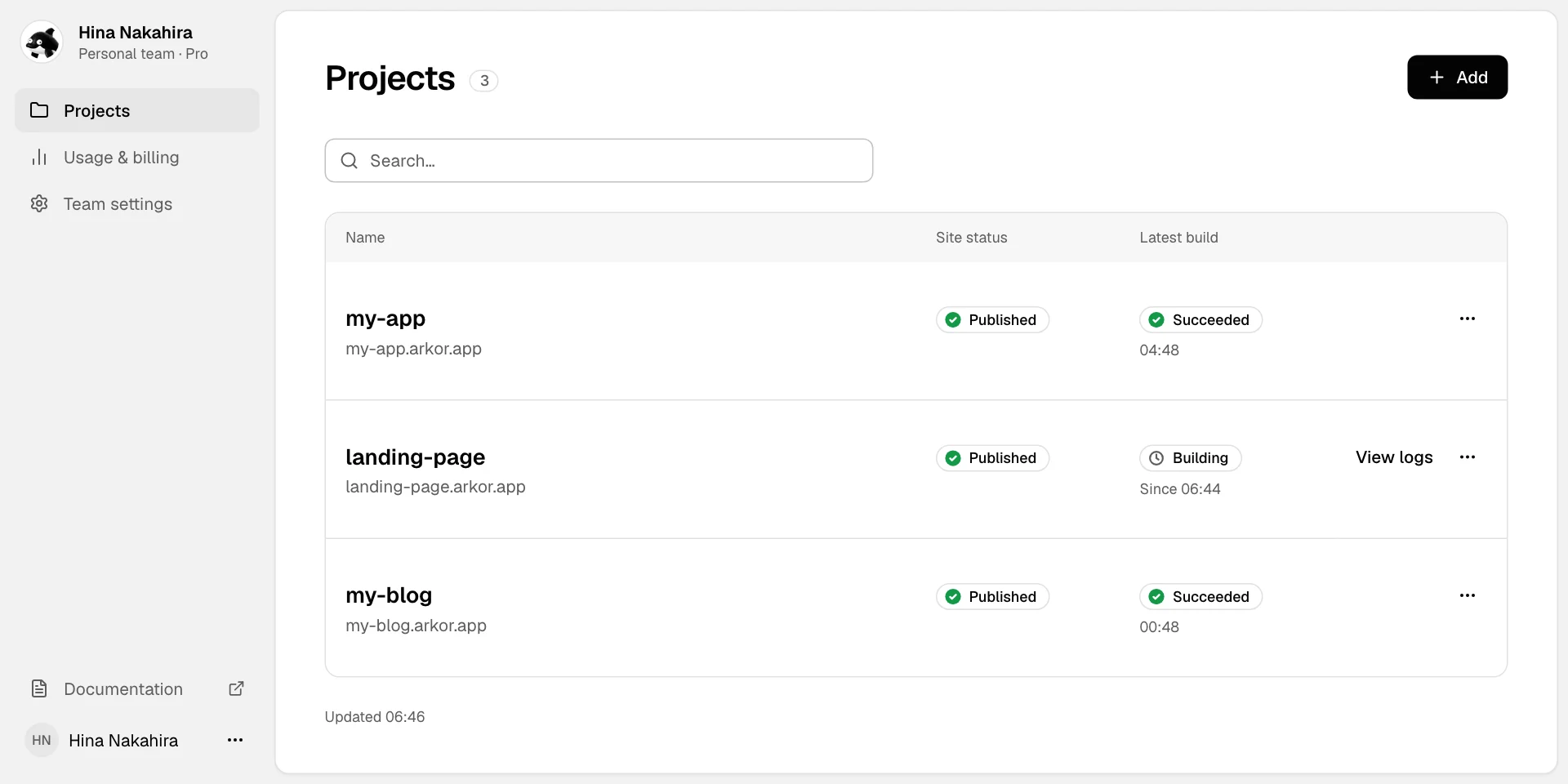
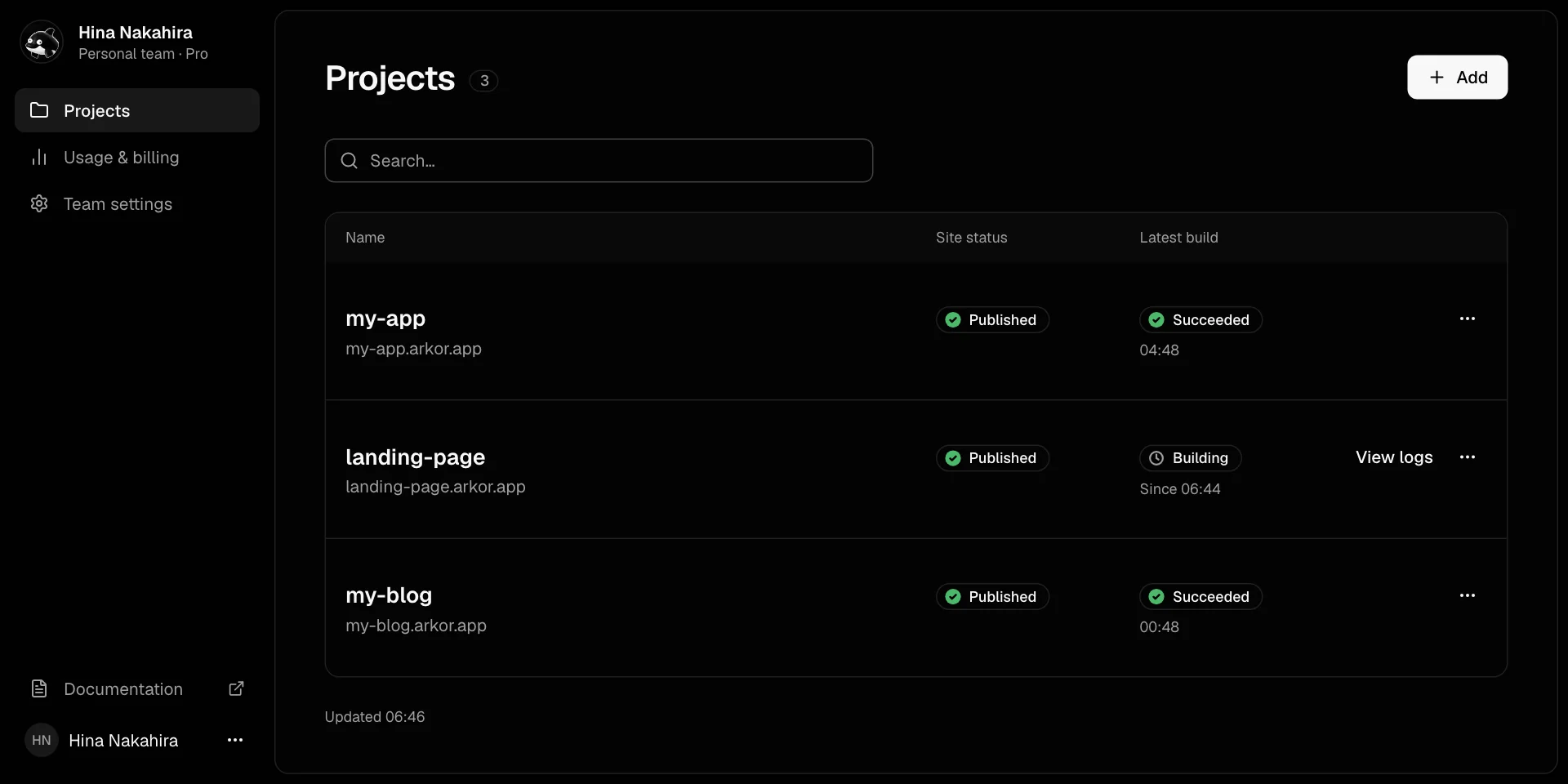
To add a project, choose Add; see Deploy from GitHub.
Change the project name
Owners and admins can open Settings › General, edit Project name, and choose Save.
The new name appears throughout the dashboard and in the public API's displayName field. A name
can contain up to 64 characters, including Japanese text, and need not be unique.
Renaming keeps the project's ID, public URLs and OIDC identity. To reconnect a Git repository by importing it again, use the original address label shown in Git, rather than the display name.
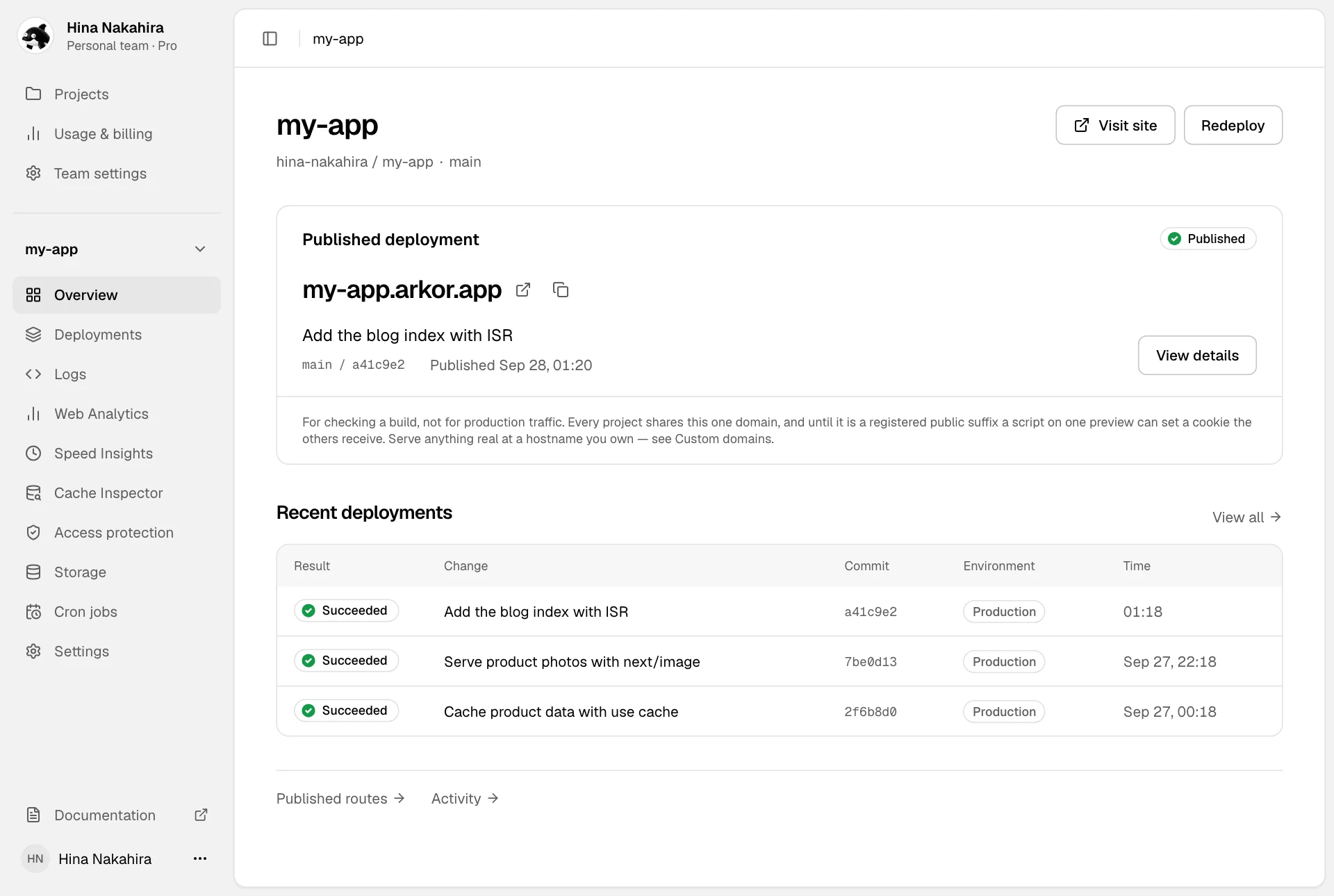
A project's Overview
Choose a project to open its Overview.
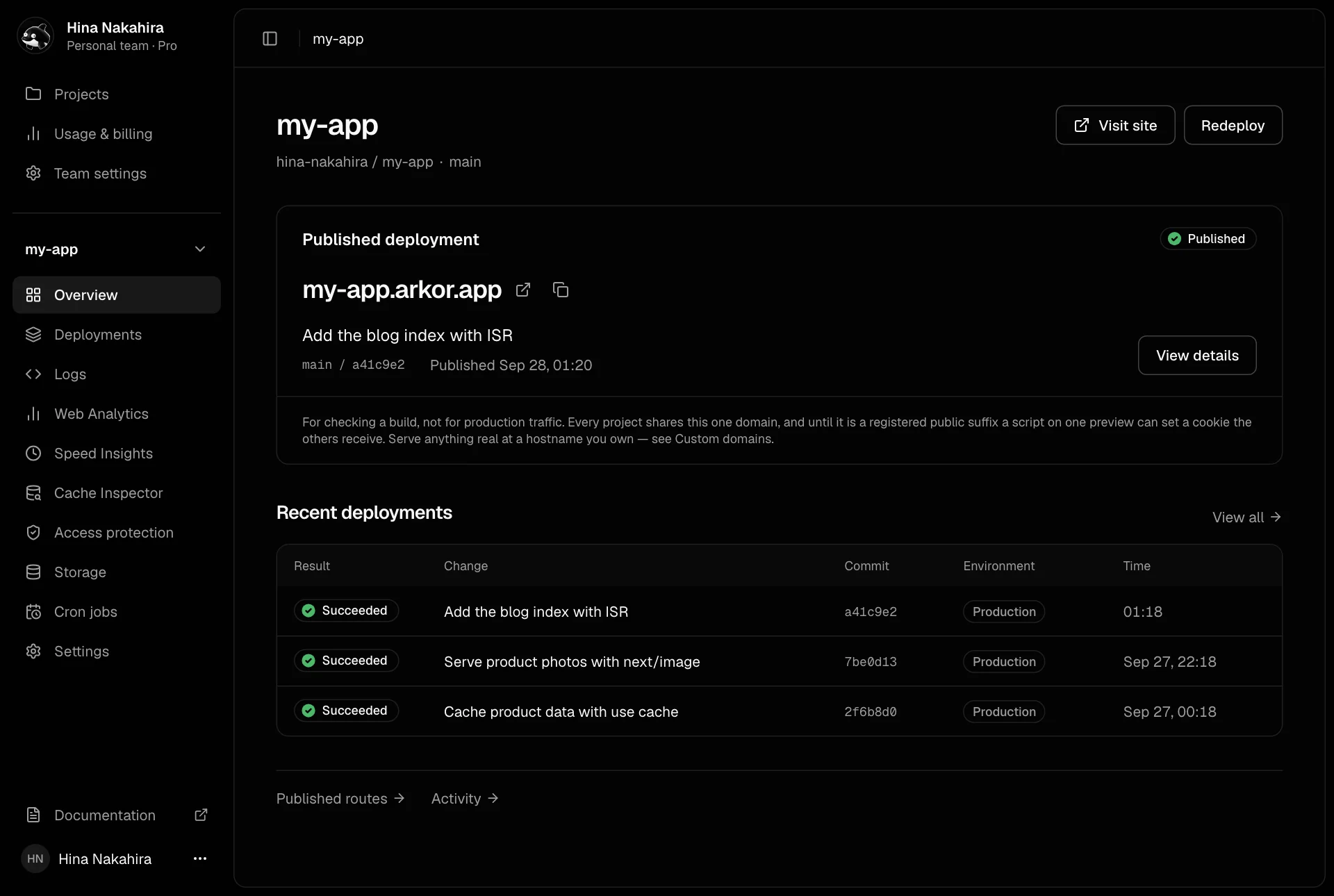
- Published deployment: the deployment being served, its commit and when it was published. Choose Visit site to open it, or View details for its build.
- Latest build: shown when the newest deployment is not the published one, for example while a build runs or after one failed. A failed build does not change what is served.
- Recent deployments: the three newest. View all opens the Deployments page.
- Redeploy: builds the newest commit of the production branch.
While a build runs, the Overview updates itself. When the newest build failed, it says so and keeps showing the deployment that is still published:
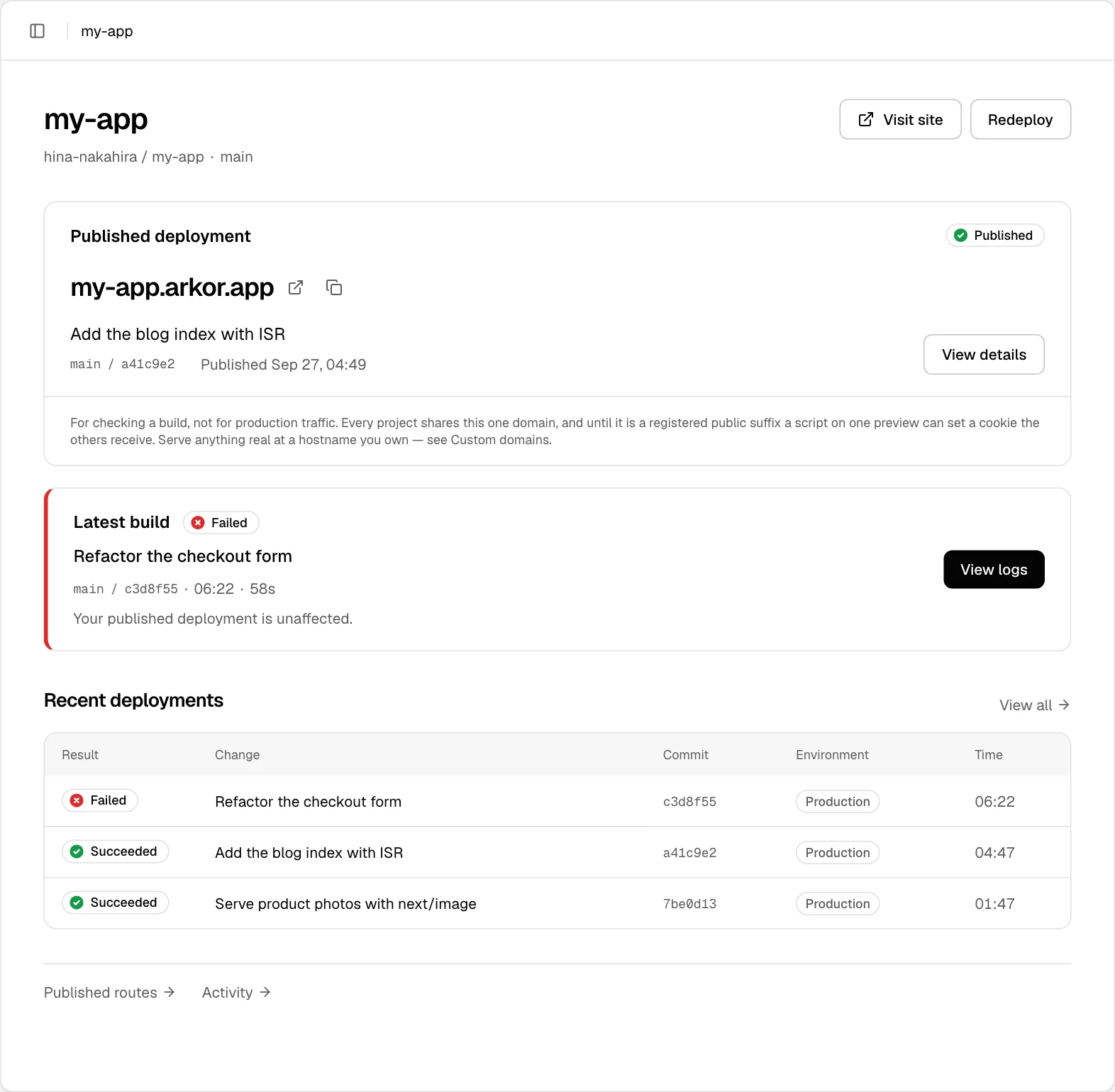
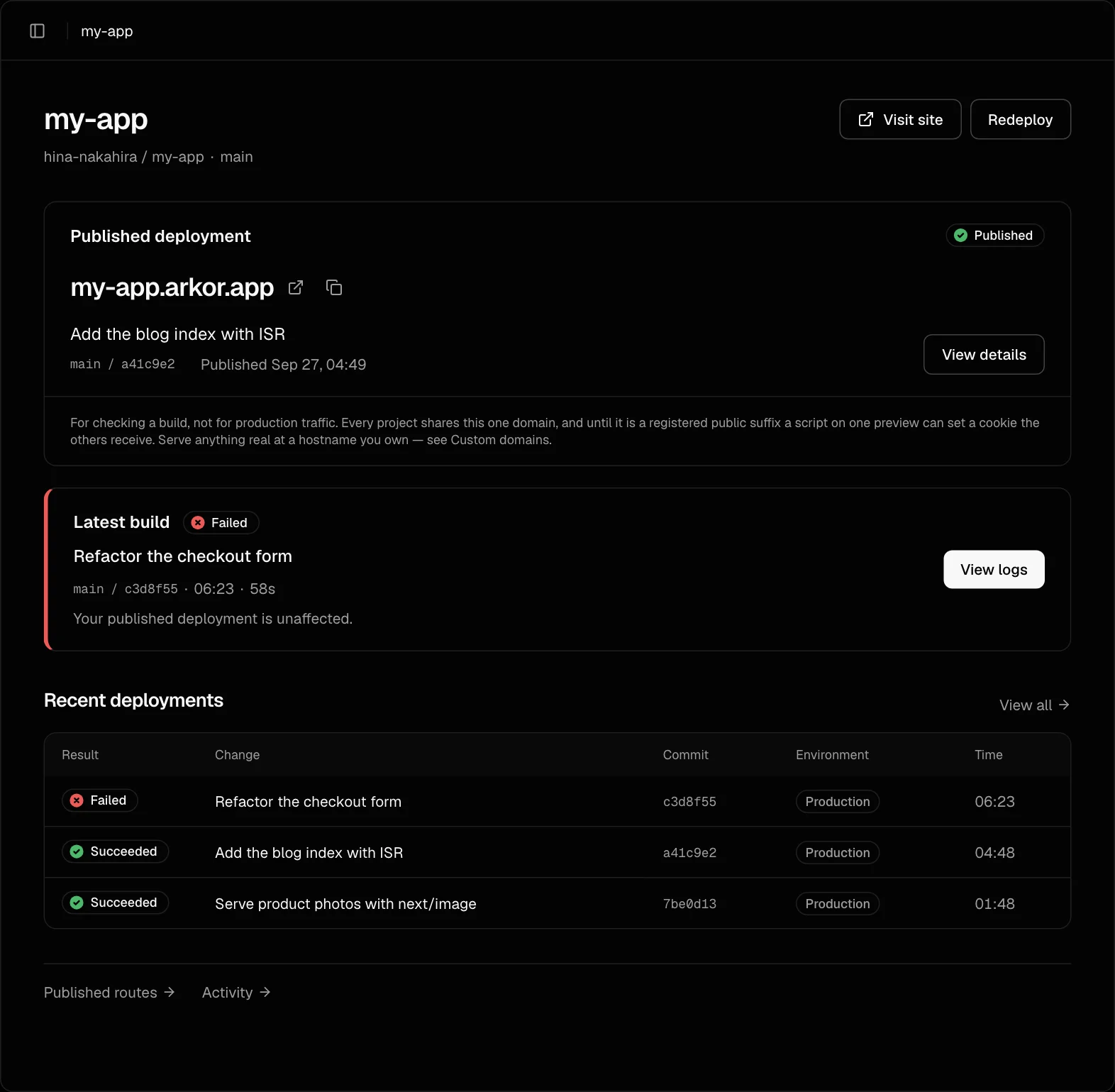
The arkor.app address is shared by every project and is meant for checking builds. Serve
production traffic at a custom domain.
To move between projects, use the project name at the top of the sidebar's project menu.
Published routes
This section describes Next.js deployments. Native Worker and other framework builds show their framework and static asset counts in Build output. To choose which service handles a hostname or path, configure its public service routes.
Choose Published routes at the bottom of the Overview to see the routes of the published deployment and how each is sent:
- Shell from the edge, finished by the app: the prerendered shell is sent from the edge, and your app streams the rest.
- Whole document from the edge: the page was complete at build time and is sent as it is.
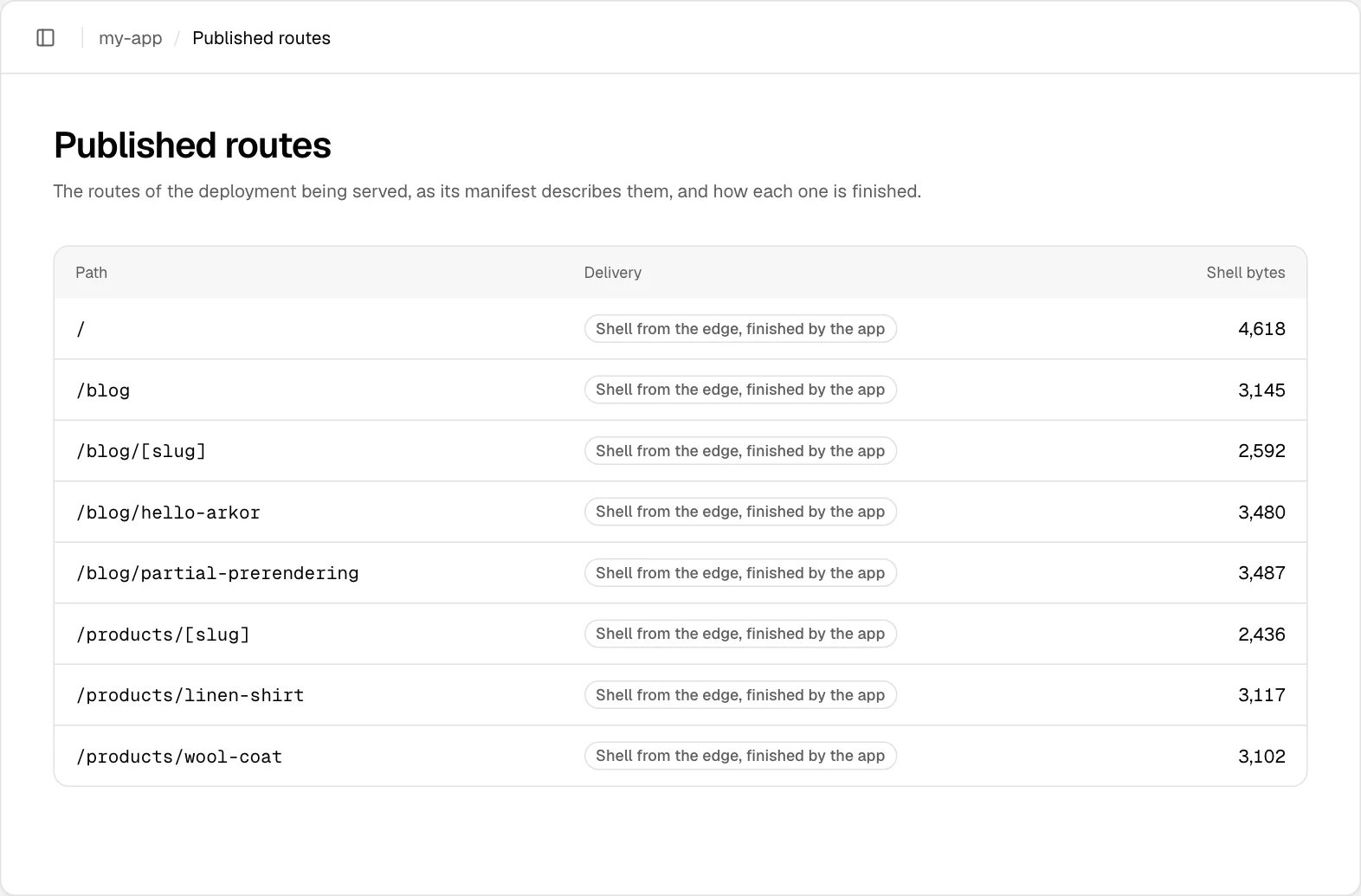
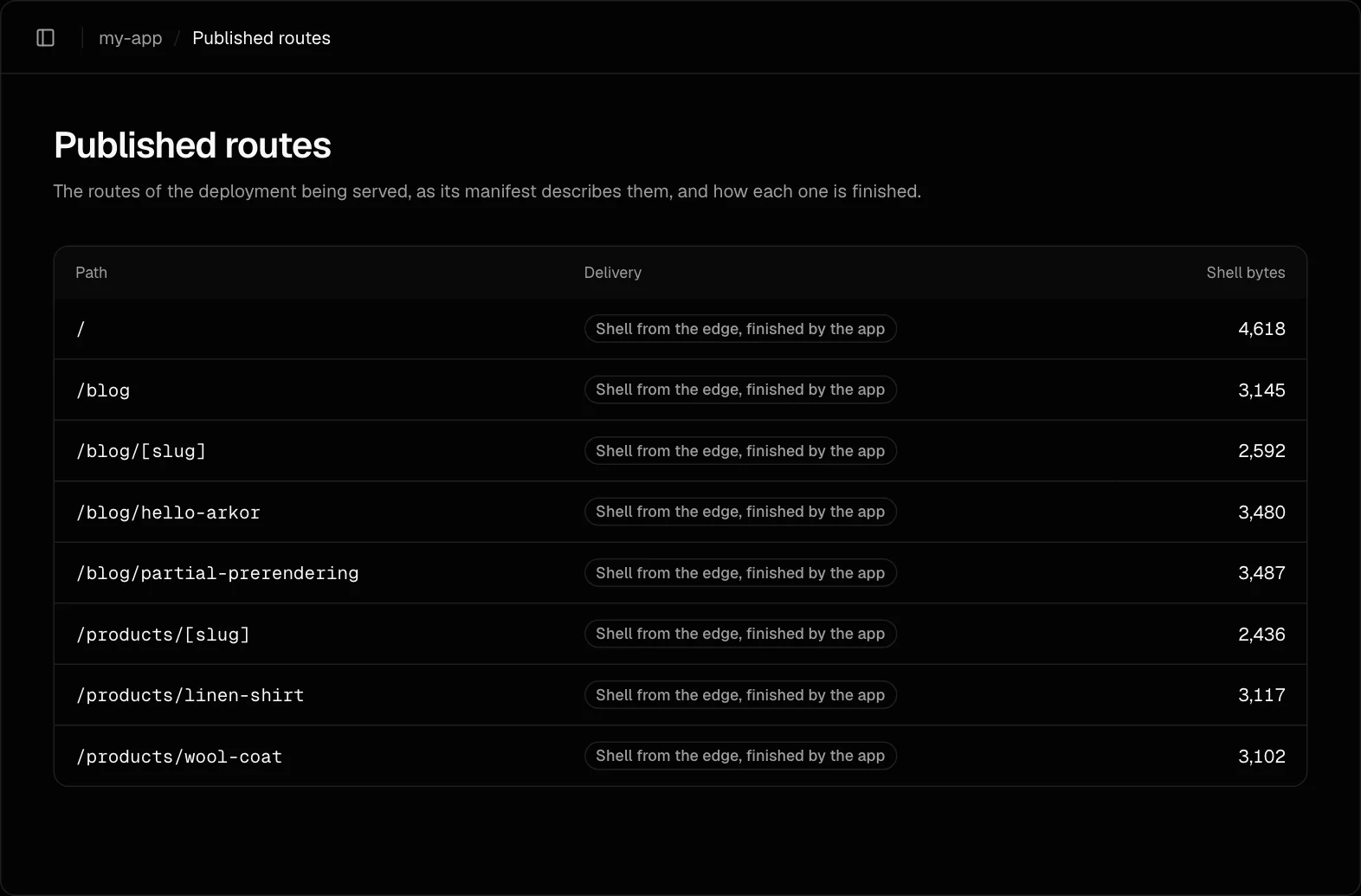
A route that is not listed is rendered by your app on every request. Files of the build, such as the pages of a static export, are not listed: they are sent from the edge as files. To see how a single request was served, read its response headers.
Activity
Choose Activity at the bottom of the Overview to see what happened to the project, newest first: builds started and failed, deployments checked and published.
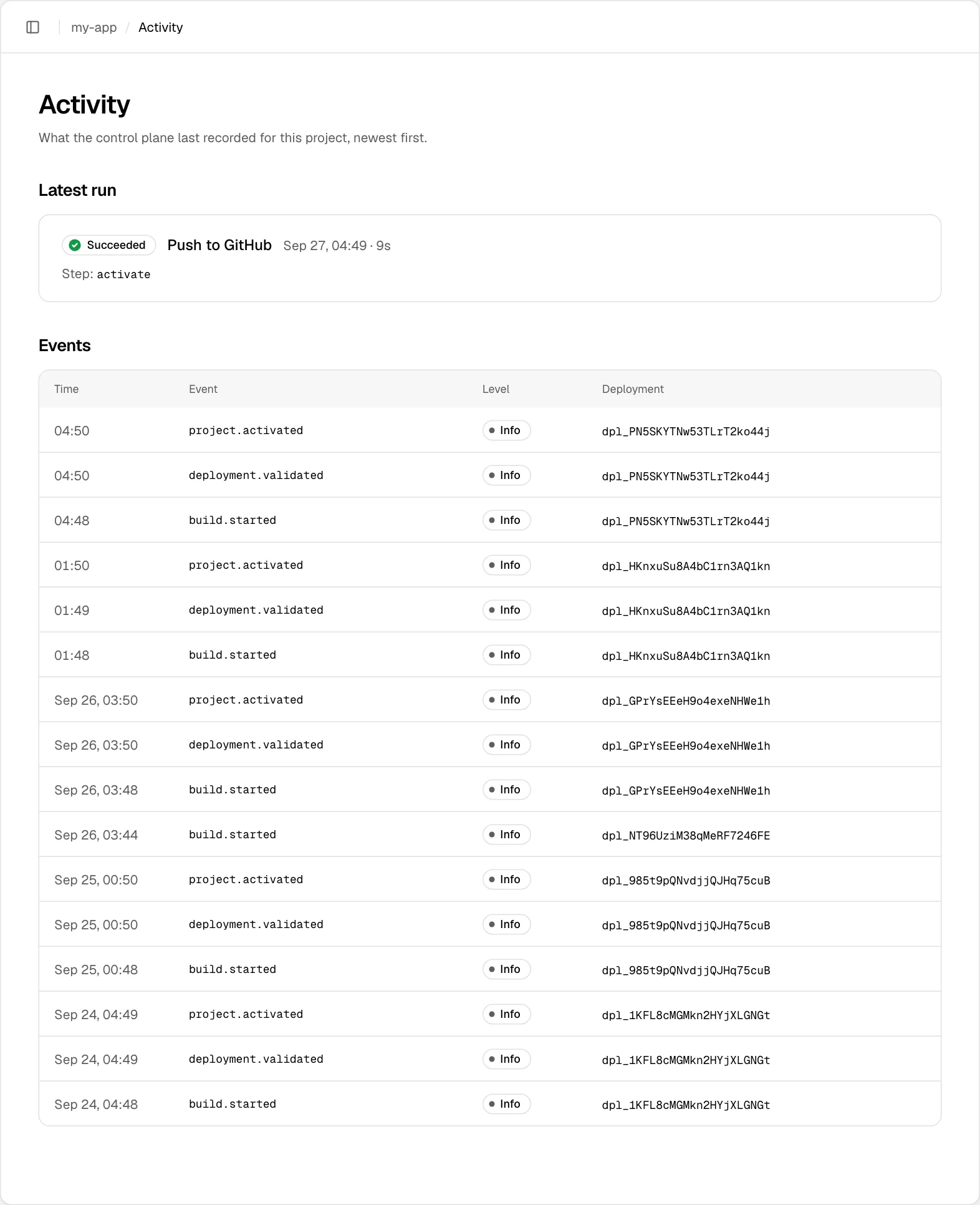
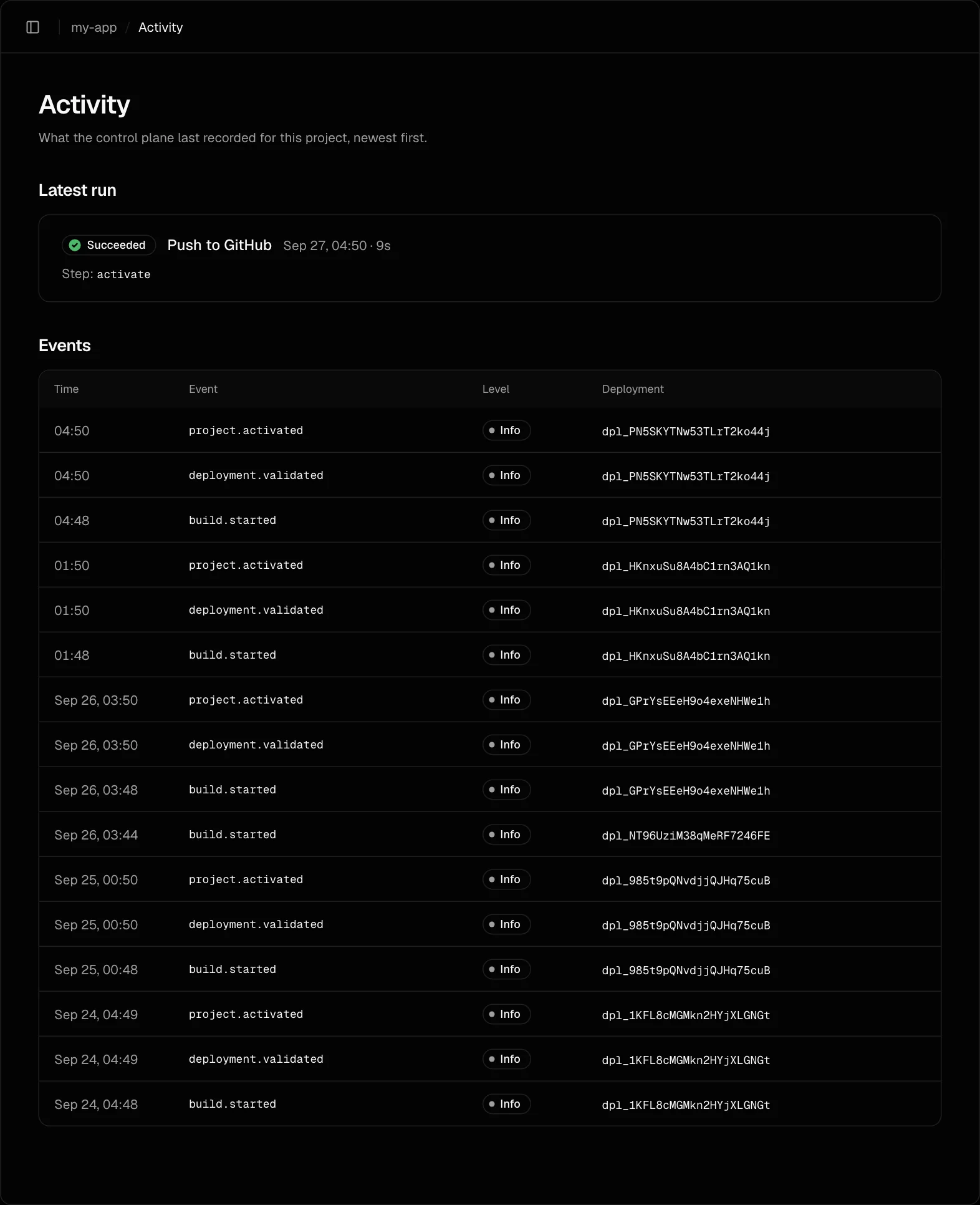
Latest run, at the top, is the last time Arkor took a deployment live or checked again the one being served, with what started it. View run lists what it did, step by step. A run that builds nothing, such as one started with Run again, is also noted under the Overview's cards while it runs or after it fails, with View activity.
Owners and admins can choose Run again. It checks the deployment being served again, as it was checked before it went live, and publishes what that finds. Nothing is built.